With the Course Quizzes add-on for MemberPress Courses, you’ll be able to create and add quizzes to any of your existing or new courses.
This document will cover how MemberPress Quizzes work, quiz settings, and available question types.
Getting Started
Once you’ve installed and activated the MemberPress Courses add-on, you can install the MemberPress Course Quizzes add-on:
- Navigate to Dashboard > MemberPress > Add-ons.
- Browse add-ons for the Course Quizzes add-on or search for “quizzes“ using the search tool.
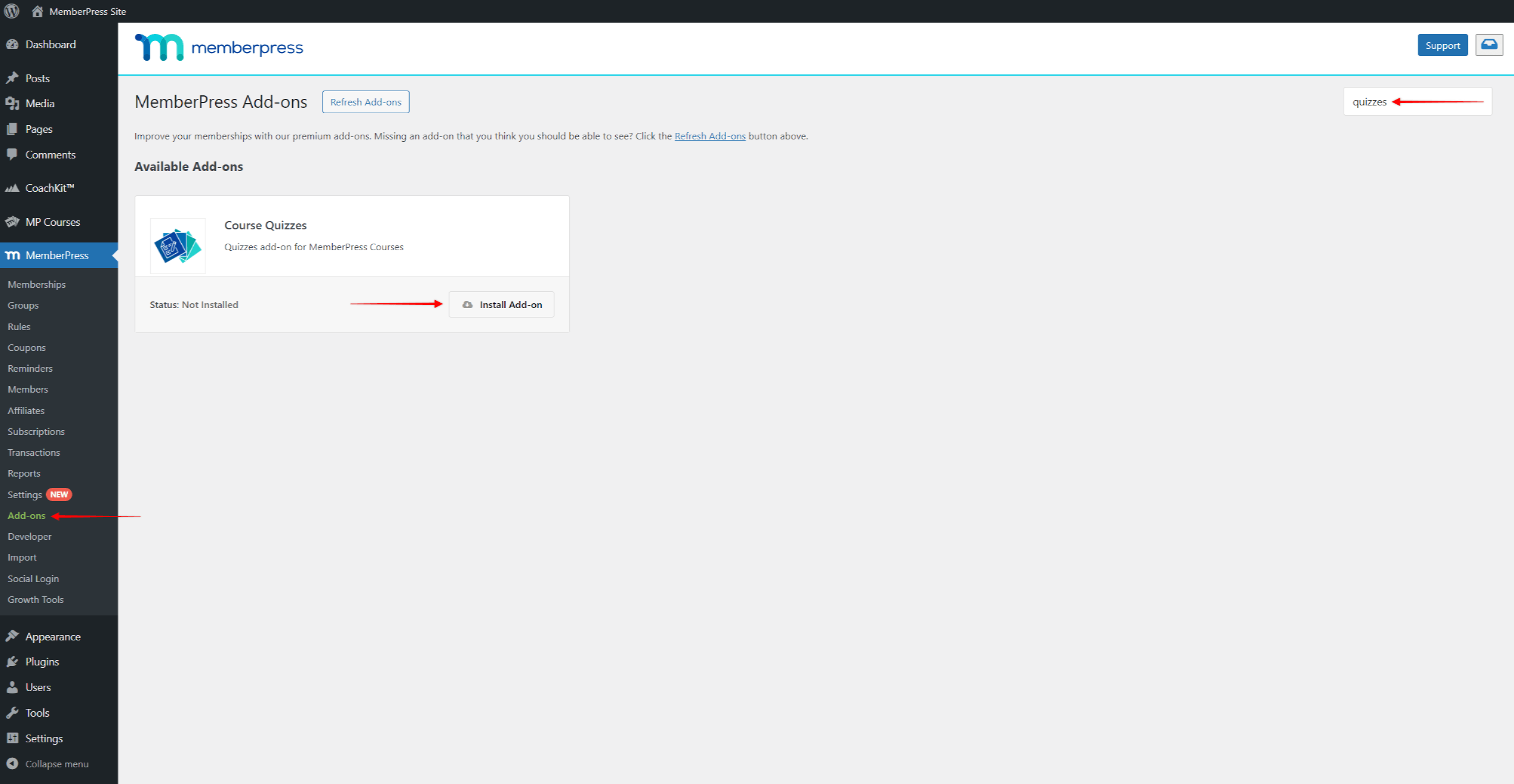
- Once you find the add-on, click the Install Add-on button. This will automatically install and activate the add-on.
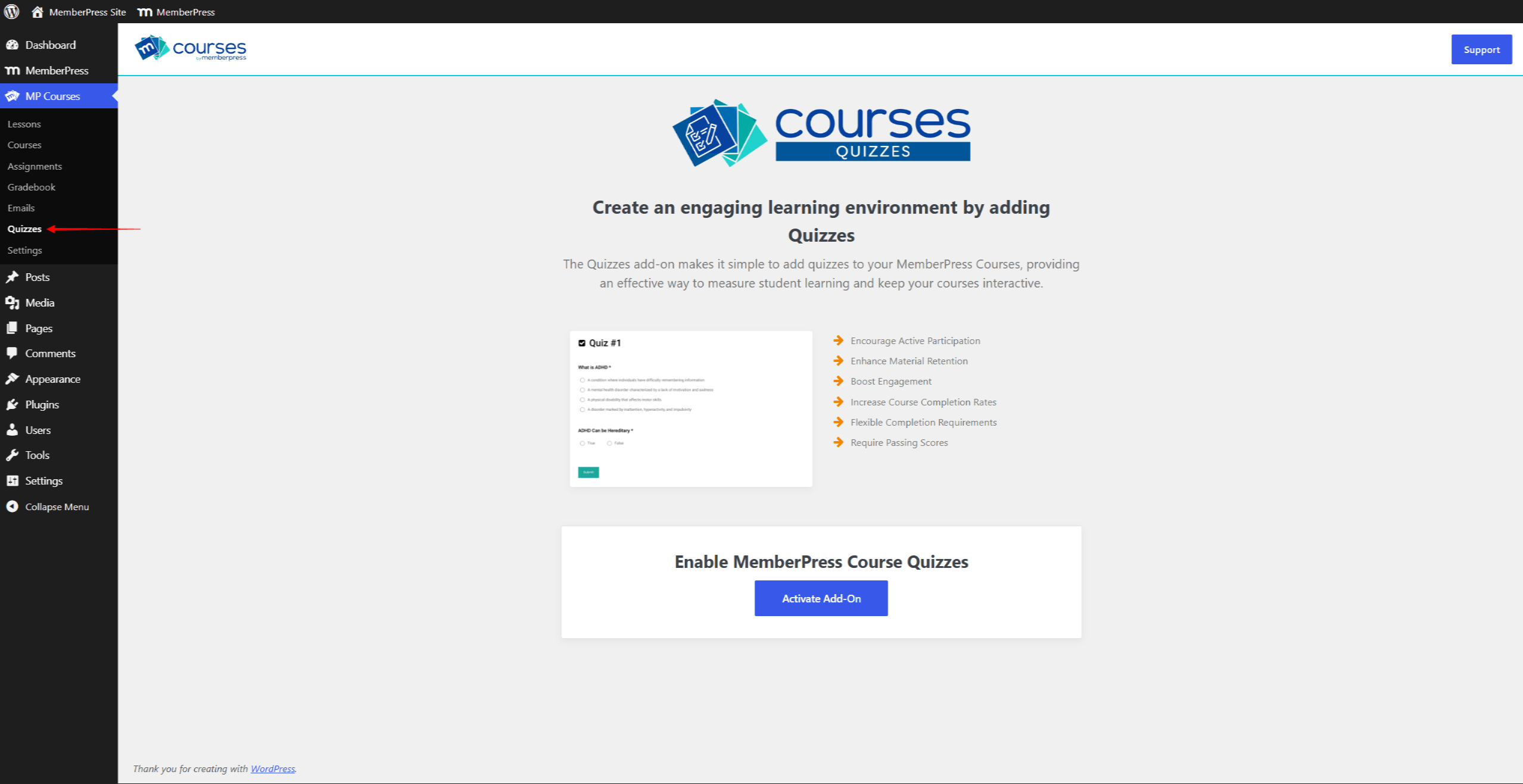
MemberPress comes with quiz settings for each of your courses, as well as separate settings for every quiz block. Depending on your needs, you can use MemberPress quizzes in different ways.
MemberPress Quizzes can be used as a learning tool or to test your users’ knowledge. Thus, you could combine different types of question blocks to deliver your learning content through a series of questions. Also, you could combine quizzes with your certificates, requiring users to pass the test before receiving the certificate.
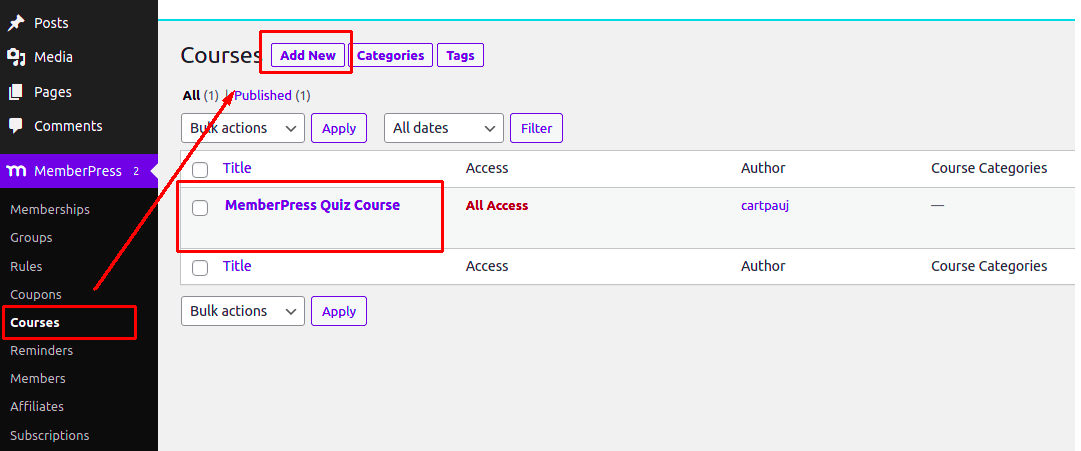
You can add quizzes to MemberPress Courses through a course Curriculum.
Quizzes settings
You’ll find all the settings for Quizzes under the Courses Settings tab. Go to your WordPress dashboard > MemberPress > Courses. Click on the course where you’d like the quiz to be, and click Settings. You’ll see the new Quizzes options there:
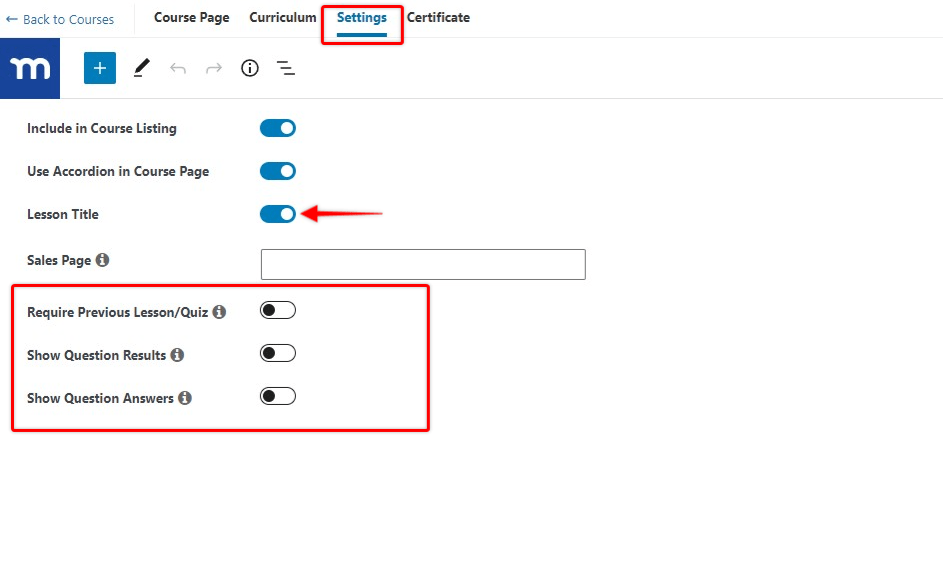
Now let’s see what each of these settings does.
Lesson/Quiz Title
This option controls whether the Lesson and Quiz titles are to be displayed. Titles will be enabled by default. On the other hand, you can hide these titles on all your lessons and quizzes by disabling this option.
Require Previous Lesson/Quiz
Enable this option if you want to require students to complete a previous lesson/quiz before they can gain access to the next lesson/quiz.
Note: The first lesson of a section will require completion of the last lesson/quiz of the previous section.
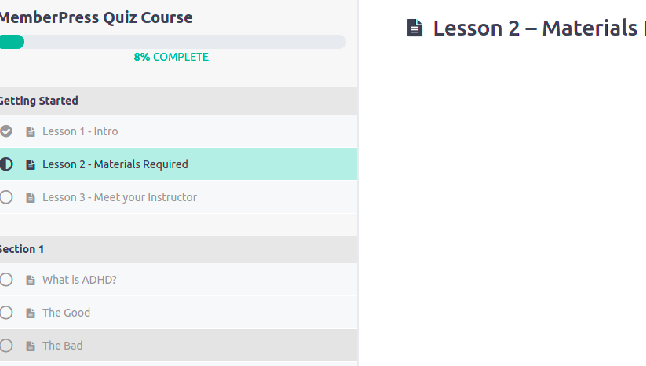
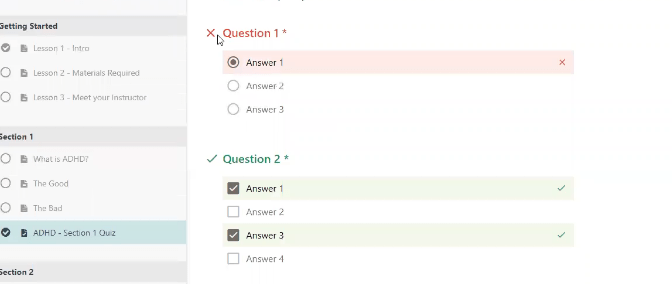
Selecting this option will allow students to see whether an answer is correct or incorrect. Disable this option if you don’t want students to know which questions they answered correctly.
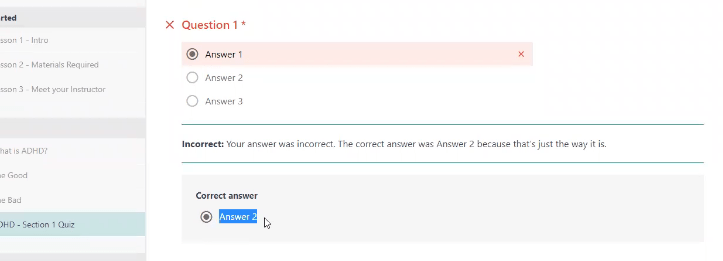
Select this option if you want to show students the correct answers after they complete the quiz.
Quiz Blocks
MemberPress quizzes are created within the Gutenberg block-based editor. All types of quiz questions have their separate block, allowing you to edit quizzes like any other WordPress post.
In addition to the question type blocks, the quiz editor provides the Question Bank block. This block pulls a set of random questions into the quiz, instead of adding a single question.
Multiple Choice Block
Here, you can write a question, add multiple answer choices, and indicate a single correct answer.
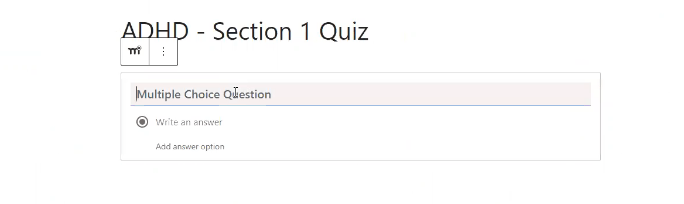
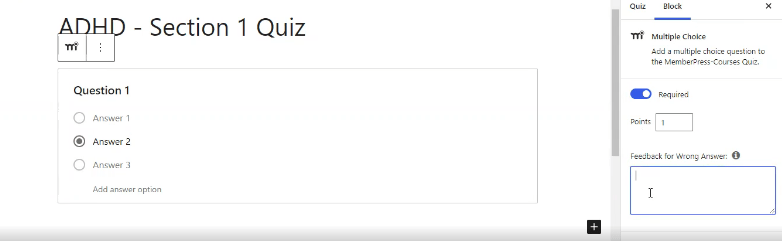
On the right, you’ll find the block settings. Here, you can label the question as required, set the question’s points, and assign tags. Also, you can add separate feedback texts. Students will see these texts after choosing a correct or an incorrect answer.
Multiple Answer Question Block
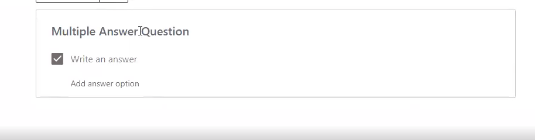
This block allows you to write a question, add multiple answers, and mark multiple correct answers.
True/False Question Block
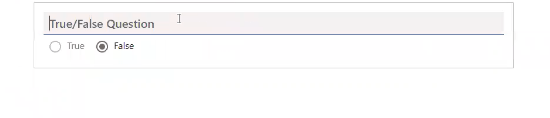
This block is as straightforward as it gets. Write a phrase, then indicate whether “true” or “false” is the correct response.
Short Answer Block
Using the short answer block, you write a question or prompt, and your student is given a field where they can provide a short written answer.
Essay Block
With this block, you write a question or prompt and indicate the minimum/maximum number of characters required. As with the short answer block, your student is shown a field where they can type a response. The student sees an alert if the response is not within the indicated number or characters.

Fill in the Blanks Block
With the Fill in the Blanks block, you can add questions in the form of text with blanks. Your students will need to fill in the blanks by typing in the correct answers.
To replace the words in your text with the blanks, simply wrap the word in square brackets (e.g. [red]). In case of multiple correct answers, add them in the same square brackets, separated by commas (e.g. [red, scarlet, ruby]).
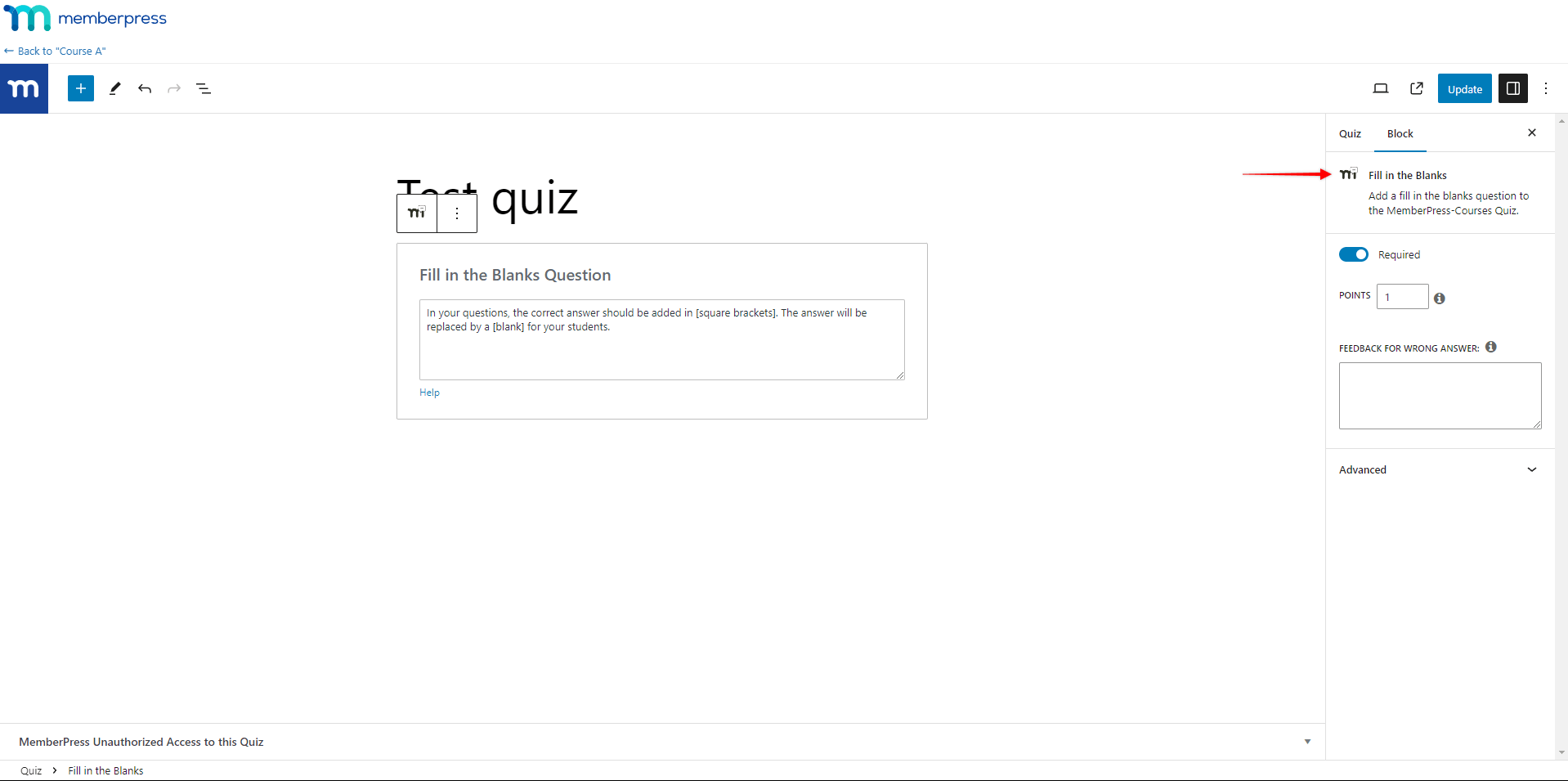
The block comes with additional settings:
- Required: toggling on this option will make this question required, preventing students from progressing unless answered;
- Points: students will be awarded points for each correct answer (each blank correctly filled in). Here, you can set how many points should be awarded for each correct answer in this block;
- Feedback for wrong answer: you can provide an explanation of the correct answer here. This text will be visible to your students if the “Show Answer” option is enabled in the Course settings;
- Feedback for correct answer: you can add a message students will see when they answer this question correctly;
- Tags: you can assign tags to the question. Tags group questions into pools used by the Question Bank block.
Sort the Values Block
The Sort the Values block adds questions in the form of scrambled items your students need to order properly.
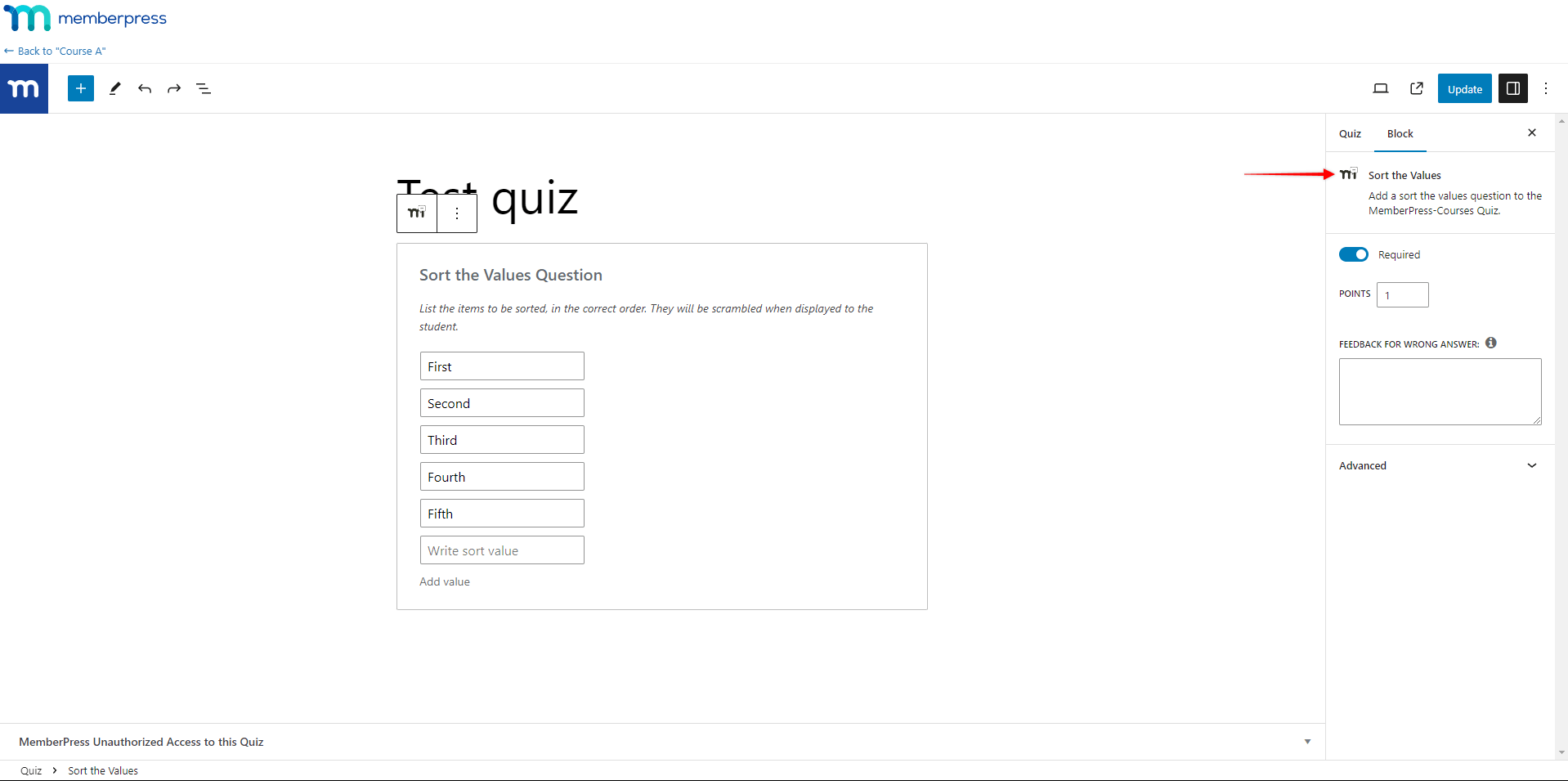
You can add an unlimited number of items to a question, all sorted in the correct order. To add additional items, click Add value at the bottom of the list.
Items will be automatically scrambled for your students. The question will be considered answered only if the student sorts out all items correctly.
The block comes with additional settings:
- Required: toggling on this option will make this question required, preventing students from progressing unless answered;
- Points: students will be awarded the number of points specified in this field for the question correctly;
- Feedback for wrong answer: you can provide an explanation of the correct answer here. This text will be visible to your students if the “Show Answer” option is enabled in the Course settings;
- Feedback for correct answer: you can add a message students will see when they answer this question correctly;
- Tags: you can assign tags to the question. Tags group questions into pools used by the Question Bank block.
Match Matrix Block
The Match Matrix block is used to add questions where students need to match the pairs.
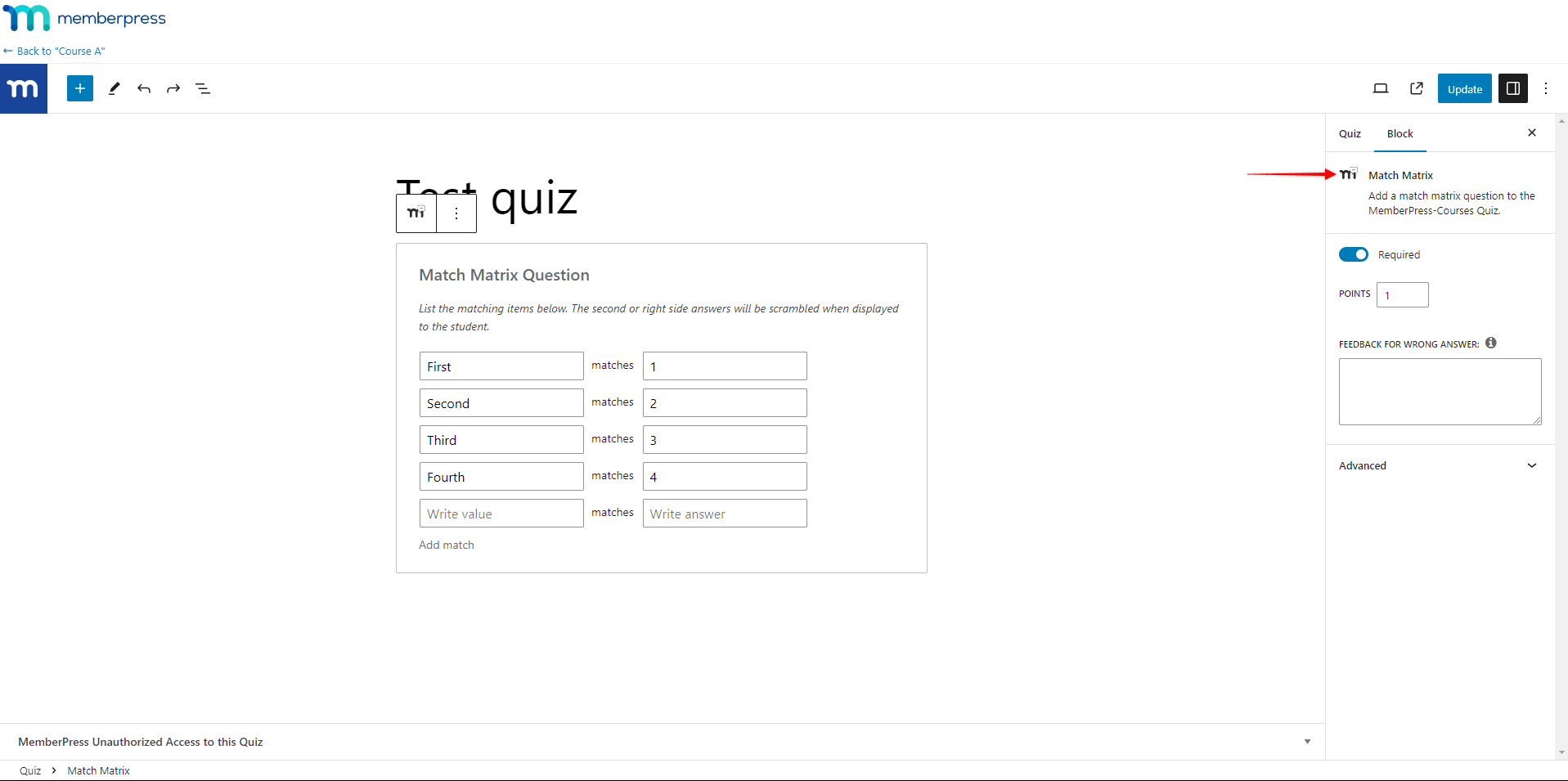
You can add an unlimited number of pairs to a question (matches). To add additional matches, click Add match at the bottom of the list.
Items in the right column will be automatically scrambled for your students. The question will be considered answered only if the student matches all the pairs correctly.
The block comes with additional settings:
- Required: toggling on this option will make this question required, preventing students from progressing unless answered;
- Points: students will be awarded the number of points specified in this field for the question correctly;
- Feedback for wrong answer: you can provide an explanation of the correct answer here. This text will be visible to your students if the “Show Answer” option is enabled in the Course settings;
- Feedback for correct answer: you can add a message students will see when they answer this question correctly;
- Tags: you can assign tags to the question. Tags group questions into pools used by the Question Bank block.
Likert Scale Block
The Likert Scale block adds a Likert scale type of question to your quizzes. Likert scale questions give students a range of options. The range of options could be expressing a student’s attitude toward a statement as a level of agreement or probability. For example, the range could be between “Disagree” and “Agree”, or starting from “Very unlikely” up to “Extremely likely”.
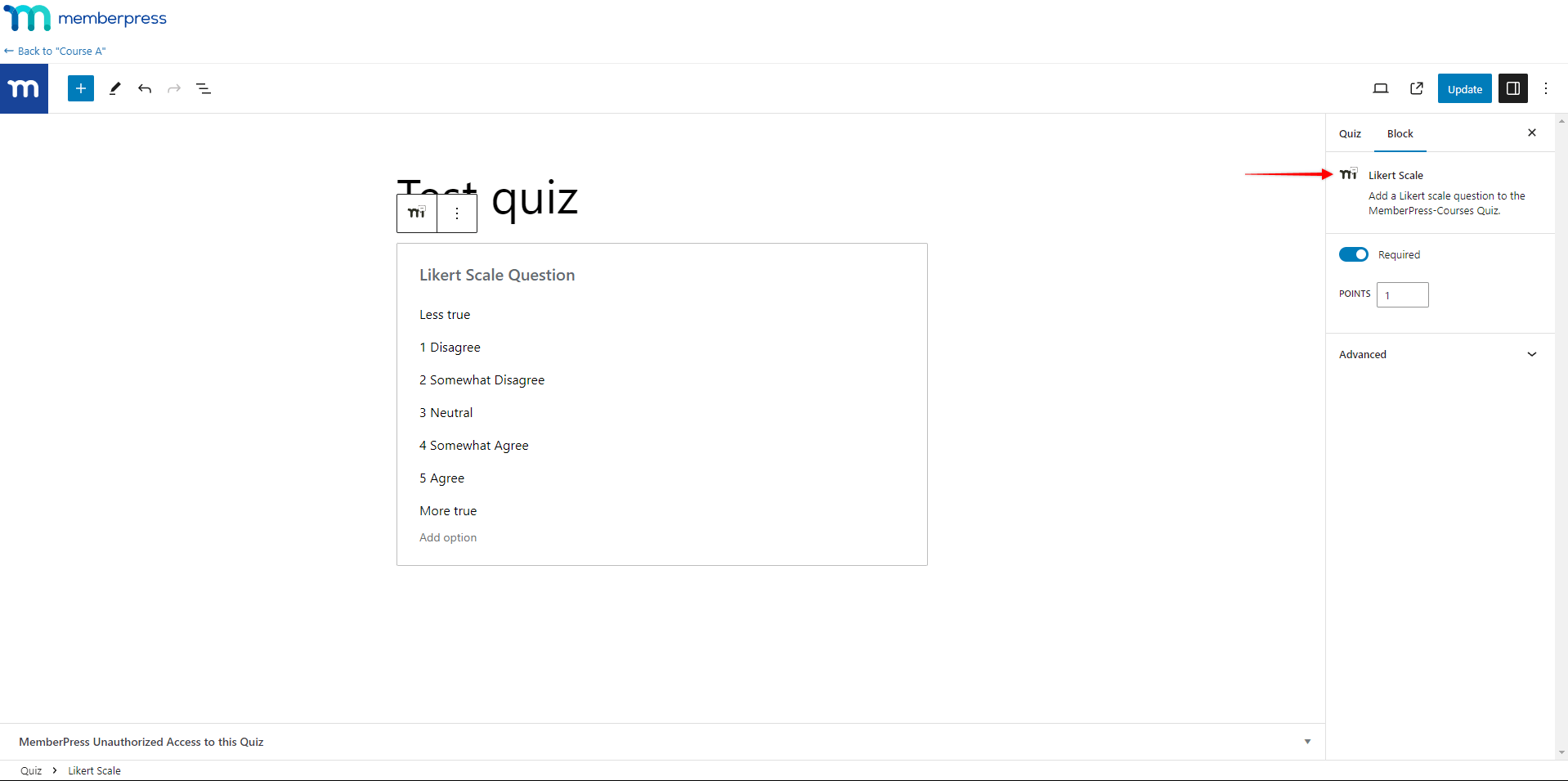
By default, the block will have five scale options, but you can add as many options as needed. To add additional options, click the Add option at the bottom of the list.
Students can select any option. Each option will award a different amount of points to a student. The first option awards the base number of points set under the Points option in the block settings. The points for the following options will be calculated in the following way:
Order number of the option X Base points = The total amount of points awarded
For example, let’s say the base points are set to 1, and the block uses the 5-option Likert scale. Here, the students will be awarded points as follows:
- Choosing the 1st option = 1 point;
- Choosing the 2nd option = 2 points (2 x 1 points);
- Choosing the 3rd option = 3 points (3 x 1 points);
- Choosing the 4th option = 4 points (4 x 1 points);
Choosing the 5th option = 5 points (5 x 1 points).
In the block settings, you can also find the Required option. Toggling on this option will make this question required, preventing students from progressing unless answered.
The block settings also provide the Tags option. Since Likert scale questions have no correct answer, this block doesn’t provide the feedback options.
Question Bank Block
The Question Bank block pulls a set of random questions into your quiz. This way, each quiz attempt can show a different set of questions to each student.
The block builds a pool of questions based on the question tags you select. You can assign tags to questions in their block settings, or manage all your questions at Dashboard > MP Courses > Questions.
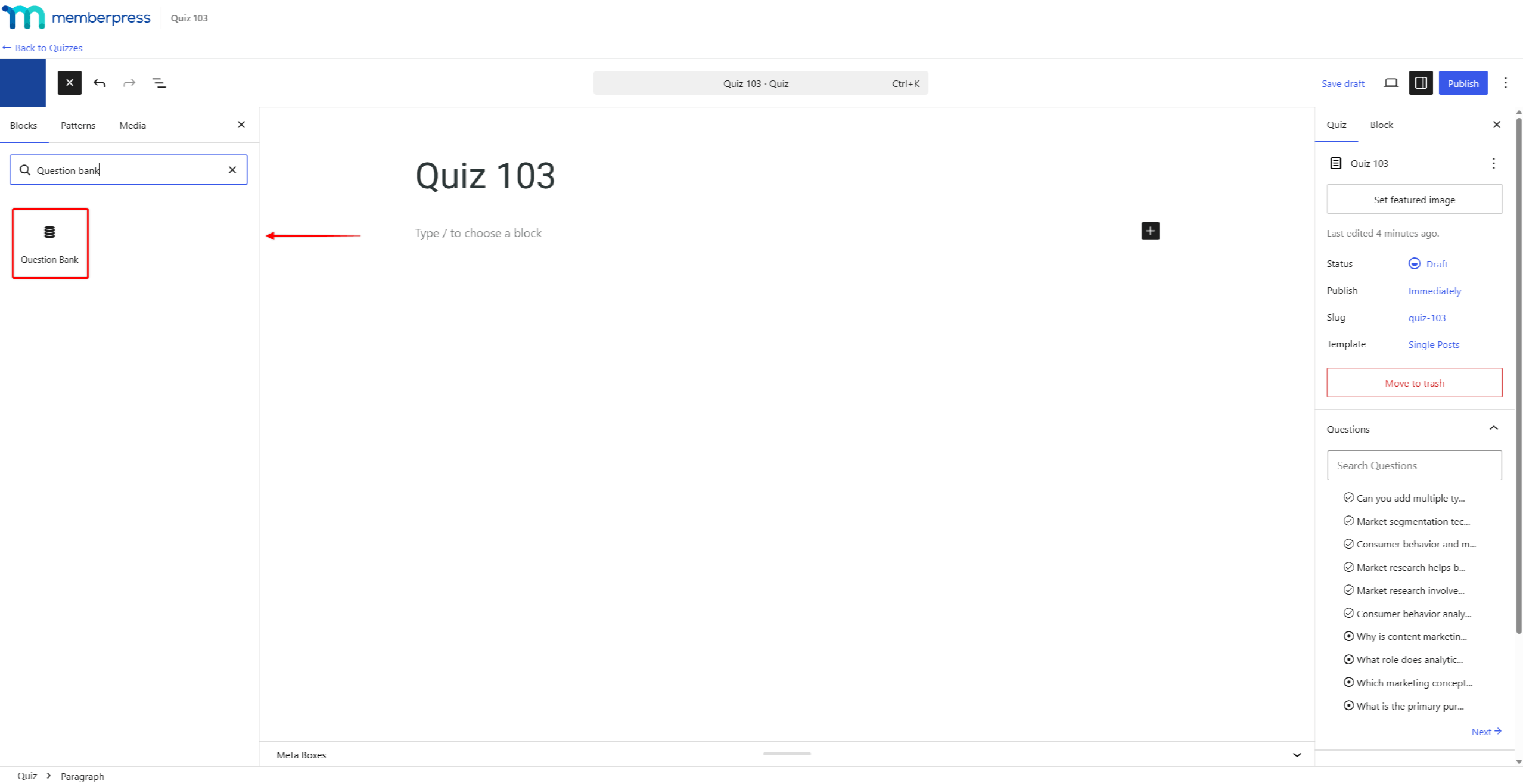
To configure the block, use the Question Source panel in the block settings:
- Add the Question Bank block to your quiz.
- In the block settings, select one or more tags under the “Filter by tags” option. All questions carrying the selected tags are pulled into the pool.
- If you select two or more tags, choose the Tag match mode. The “Any selected tag (OR)” option pulls questions carrying any selected tag. The “All selected tags (AND)” option pulls only questions carrying every selected tag.
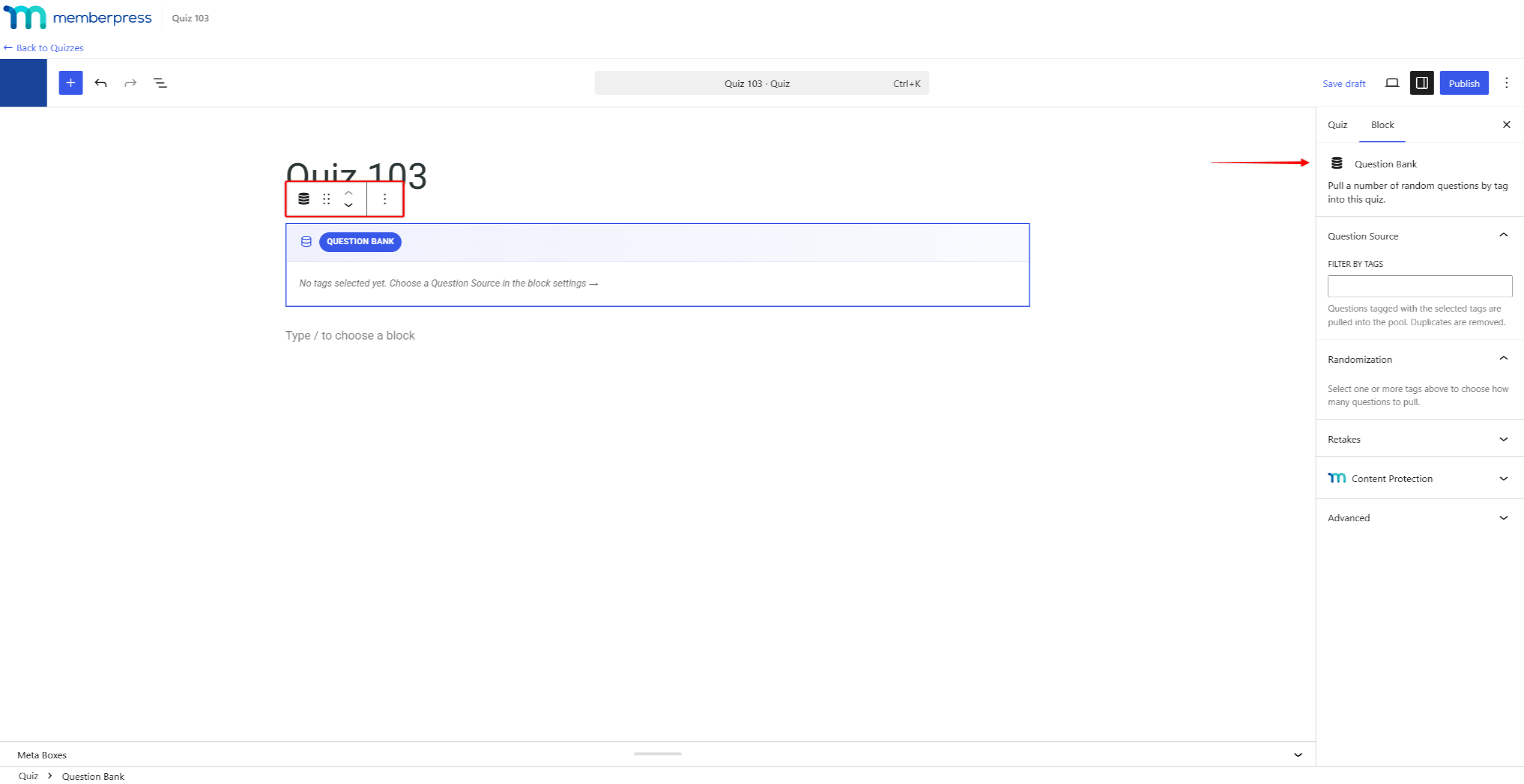
Below the tag options, the block shows the number of unique questions currently in the pool. The pool automatically excludes archived questions and questions already placed in this quiz.
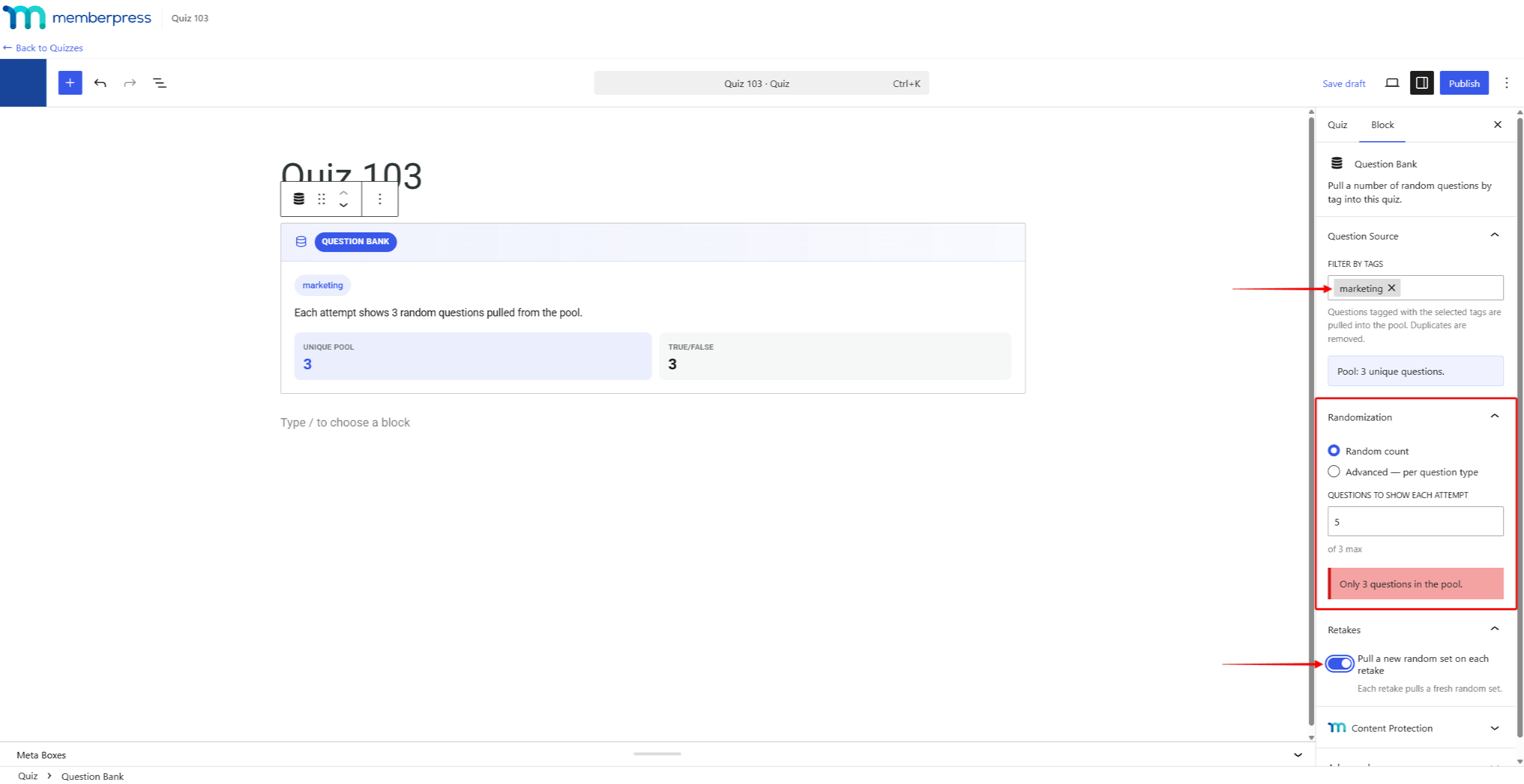
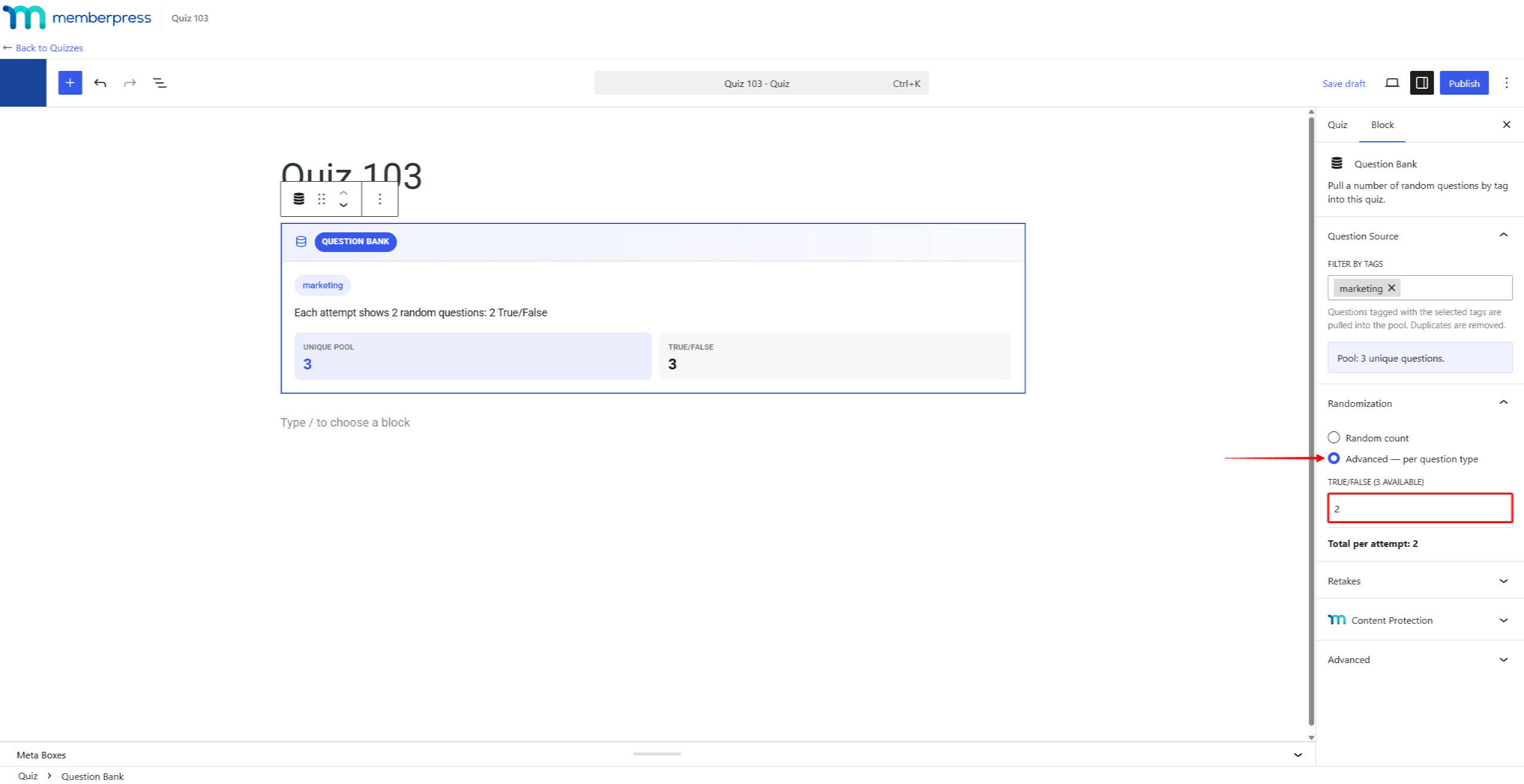
Next, set how many questions the block should pull under the Randomization panel:
- “Random count”: set the total number of questions in the “Questions to show each attempt” field. The block pulls that many random questions from the whole pool;
- “Advanced — per question type”: set a separate number of questions for each question type. The block shows how many pool questions of each type are available, and the total number of questions per attempt.
If the number of requested questions matches the pool size, the block will show a warning. In this case, every attempt shows all pool questions, and only their order is randomized. Requesting more questions than the pool contains will show an error (e.g., “Only 3 questions in the pool.”). Here, you should lower the requested number or add more questions to the pool.
The Retakes panel provides the “Pull a new random set on each retake” option. This option is enabled by default, and each quiz retake pulls a fresh random set of questions. When disabled, retakes keep the same questions as the student’s first attempt.
You can combine the Question Bank block with question blocks in the same quiz. Questions placed directly in the quiz are automatically excluded from the random pool. Thus, the same question will never appear twice in one attempt. The quiz editor shows a notice on any question overlapping the pool. The pool count updates once you save the quiz.
Students see the pulled questions as a regular part of the quiz. The set of questions stays the same if the student refreshes the page during an attempt.
Image or Video as Feedback for Wrong Answers
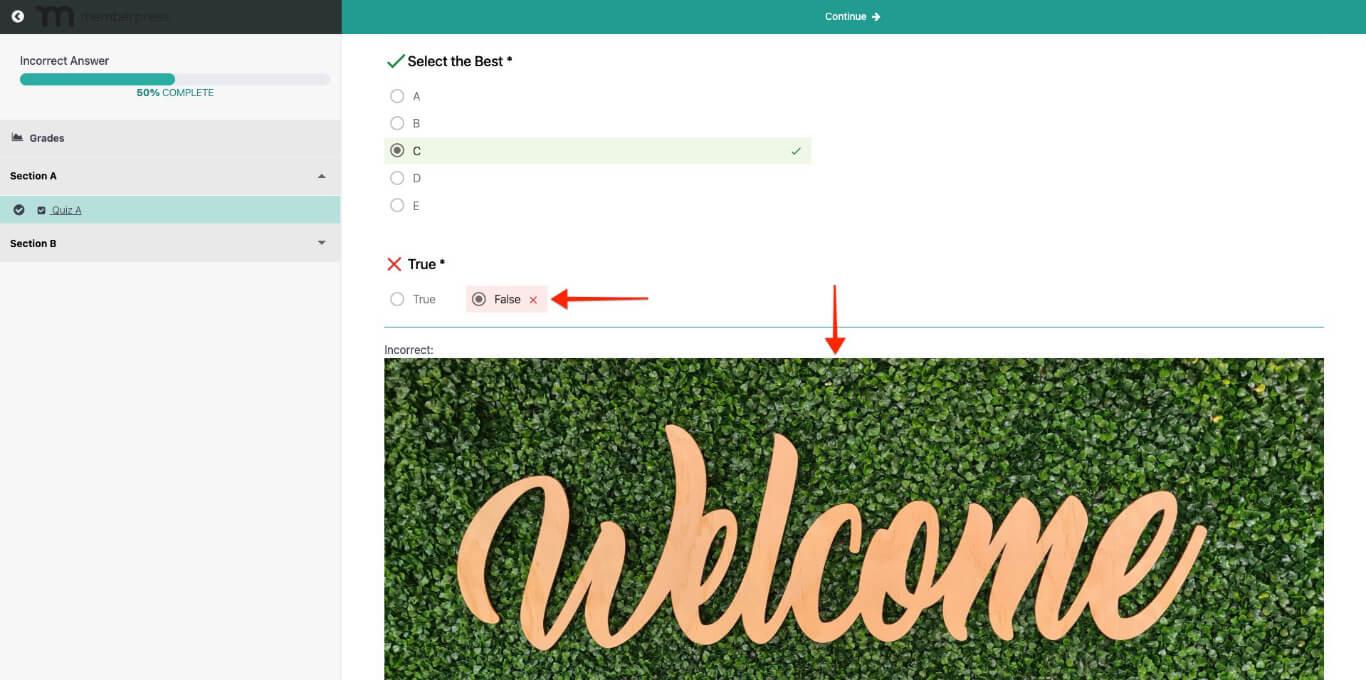
The Feedback for wrong answer option supports images and videos. When a student’s answer is incorrect, you can show images or videos with explanations.
To add images or videos to the Feedback for wrong answer box, follow these steps:
- Navigate to Dashboard > Media > Library.
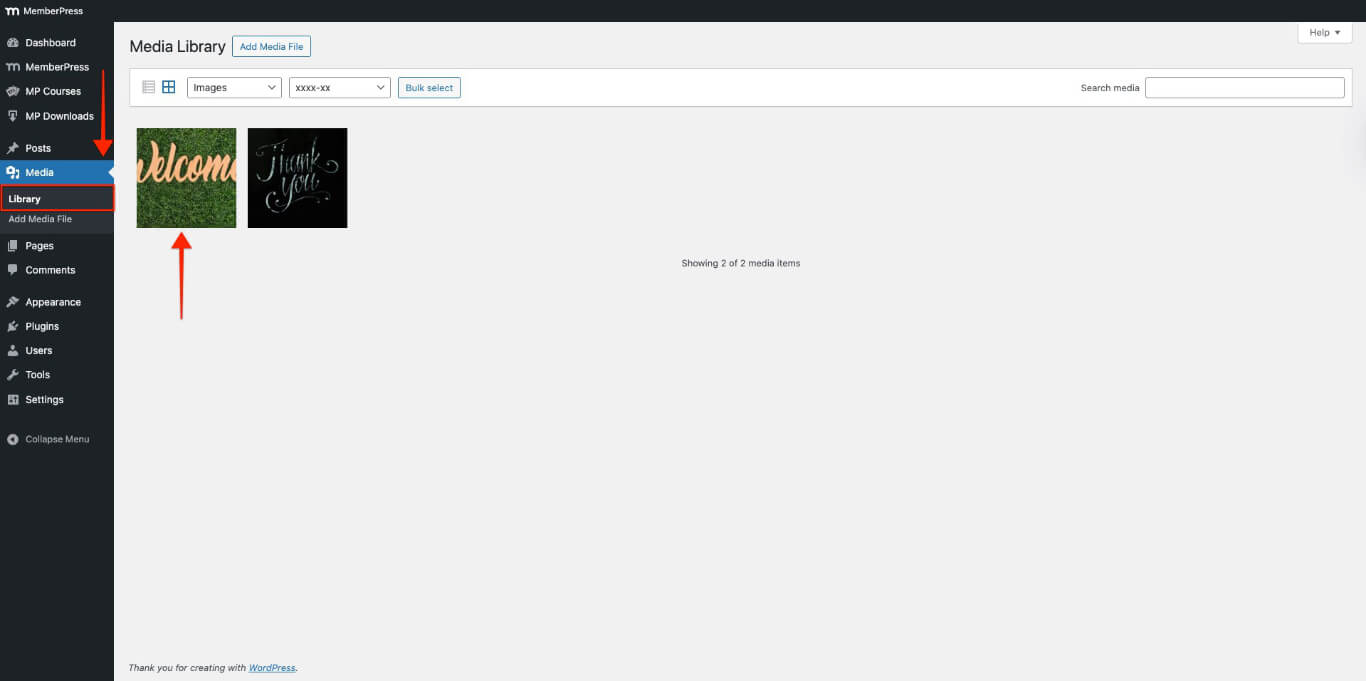
- Click on the image or video you would like to add, then click the Copy URL to clipboard button.
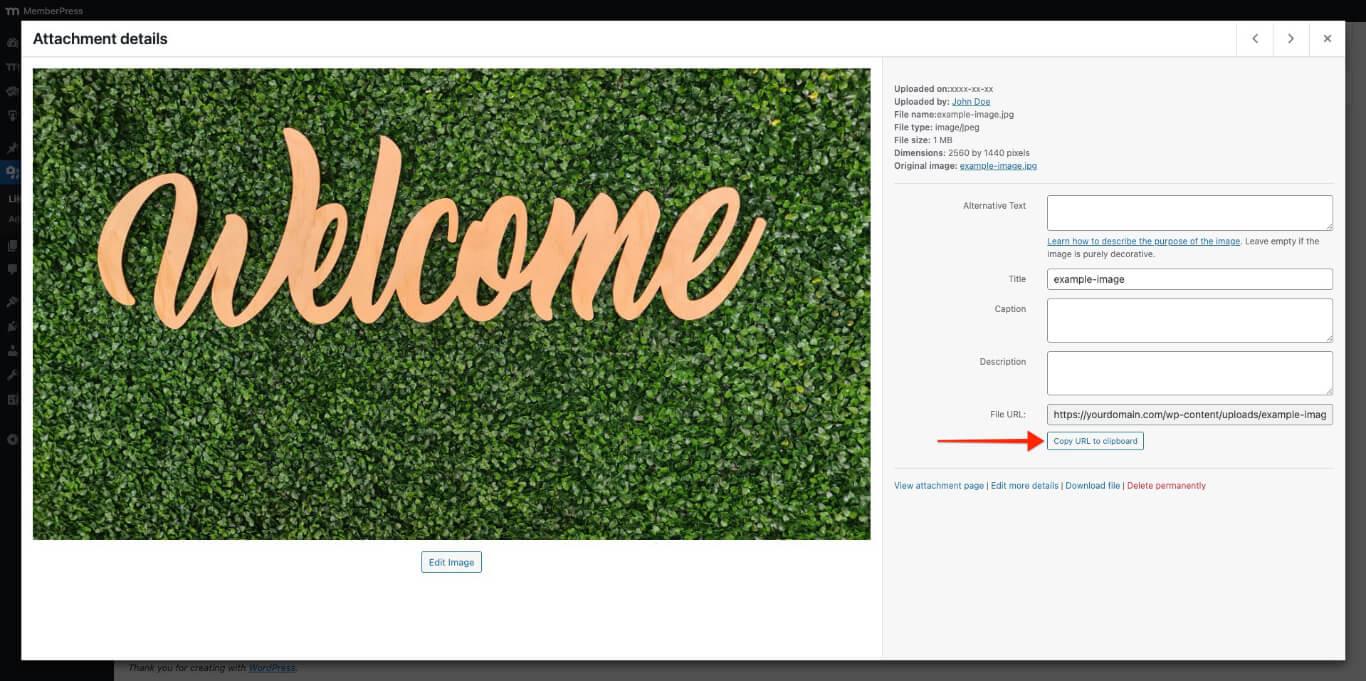
- Replace the Media-URL in the code below with the URL you copied in the previous step.
<img src="Media-URL" alt="" />
- This is what the code should look like after adding the actual URL for the image or video.
<img src="https://yourdomain.com/wp-content/uploads/example-image.jpg" alt="" />
- Paste the code in the Feedback for wrong answer box.
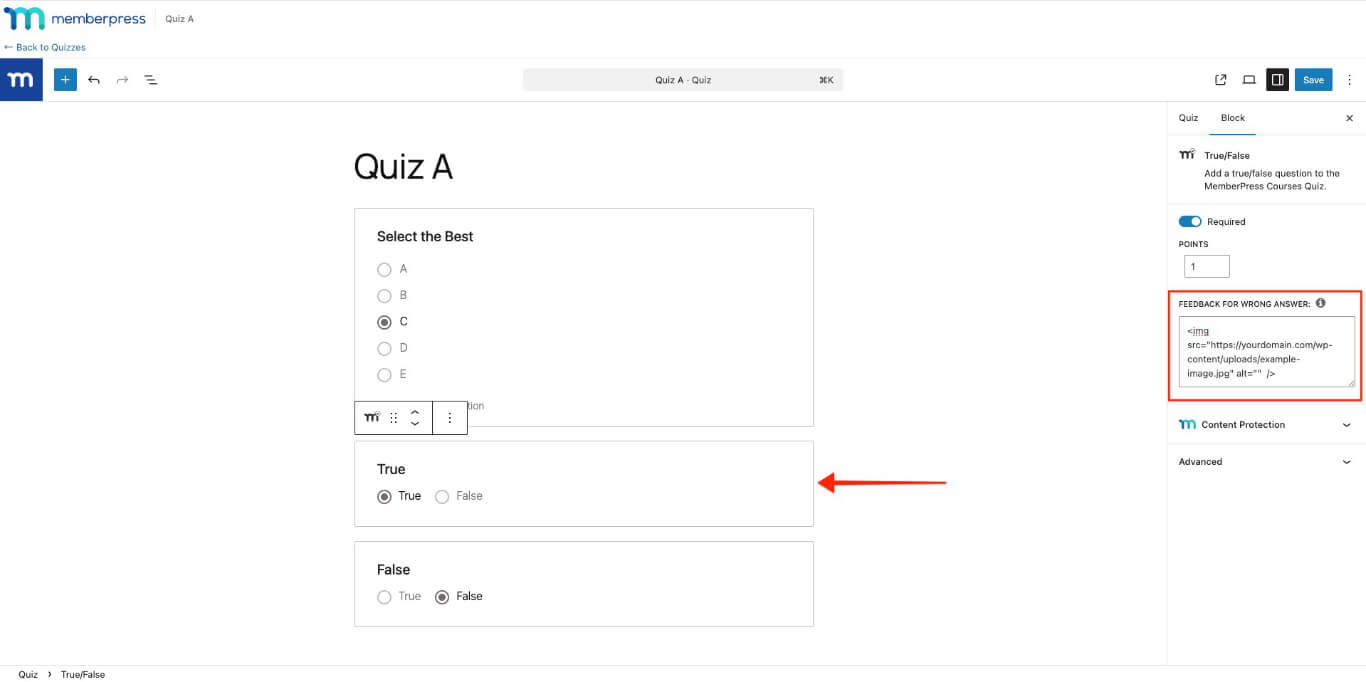
- Save the changes.
- Take the quiz and choose the incorrect answer; the image will show up below the quiz block.