MemberPress can sell in more than one currency. The way you add currencies depends on whether the MemberPress cart is enabled on your site.
With the cart enabled, MemberPress includes built-in support for multiple currencies. With the cart disabled, you can add a currency code with a code snippet. This document explains both options.
Adding Currencies with the Cart Enabled
When the cart is enabled, you can offer additional currencies without any code. Follow these steps:
- Navigate to Dashboard > MemberPress > Settings, and open the General tab.
- Under “Additional Currencies”, check each currency you want to offer.
- Click Update Options to save the changes.
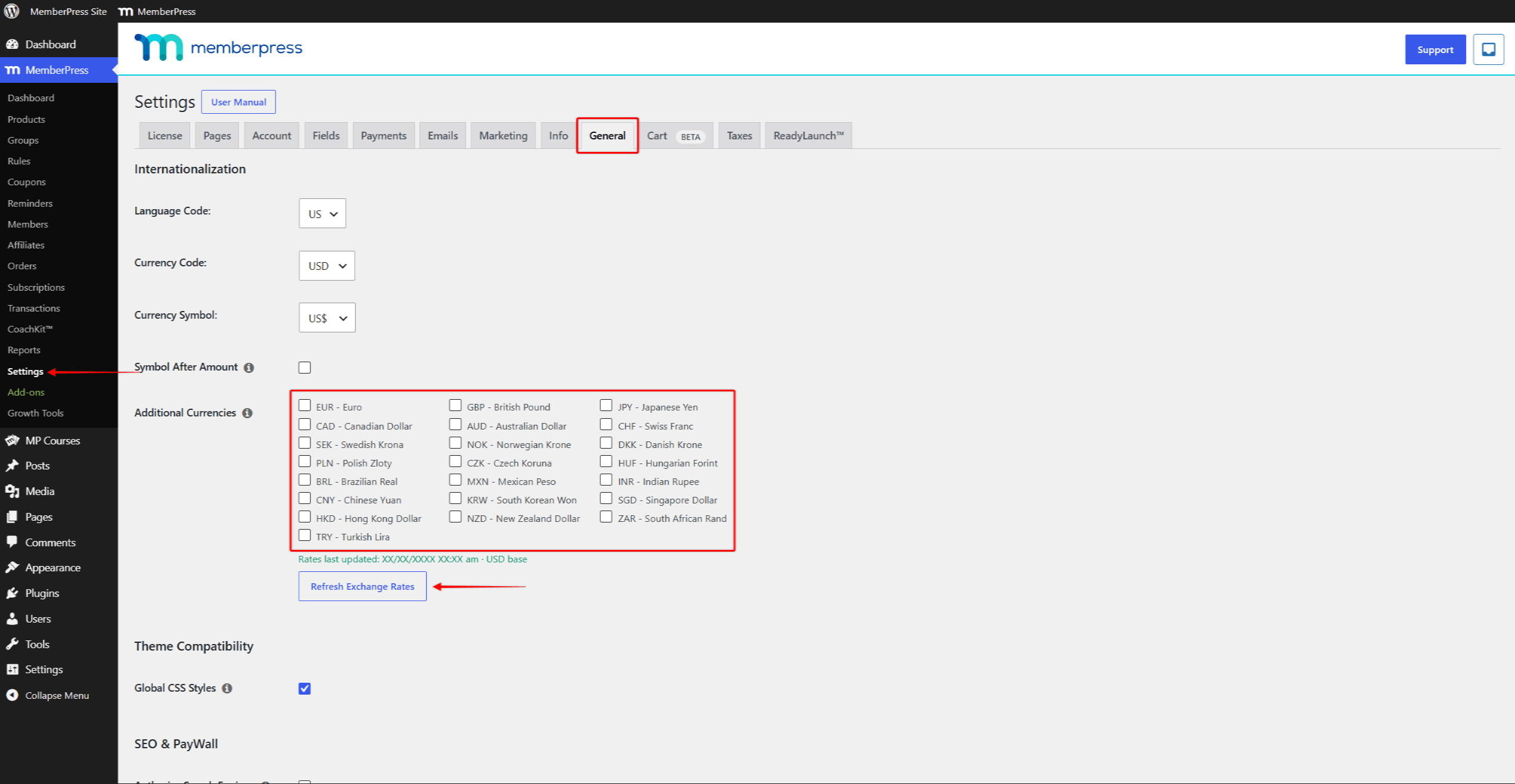
MemberPress converts prices using exchange rates based on your main currency. The date of the last update is shown below the currency list. You can click the Refresh Exchange Rates button to update the rates manually. You can also set the price in each currency manually on each product.
Customers pick their currency with the currency switcher. The switcher appears in the ReadyLaunch™ header when more than one currency is enabled. You can also place the Currency Switcher block on any page.
Adding a Currency Code Without the Cart
You may prefer to keep the cart disabled. For example, your site may need a payment gateway the cart checkout does not support. Your current registration flow may also be a better match for your design. MemberPress then supports the same currencies as the payment gateways it integrates with (Stripe, PayPal, Square, and Authorize.net).
In this case, you can add a currency code to the MemberPress currency list with a code snippet. The sections below provide the snippet and explain how to modify it.
Add Currency Code To MemberPress – Code Snippet
This code snippet will add a currency to the MemberPress currency list under the Currency Code option. The Currency Code option lets you choose the currency MemberPress should use on your website. This option is available under the General tab at Dashboard > MemberPress > Settings.
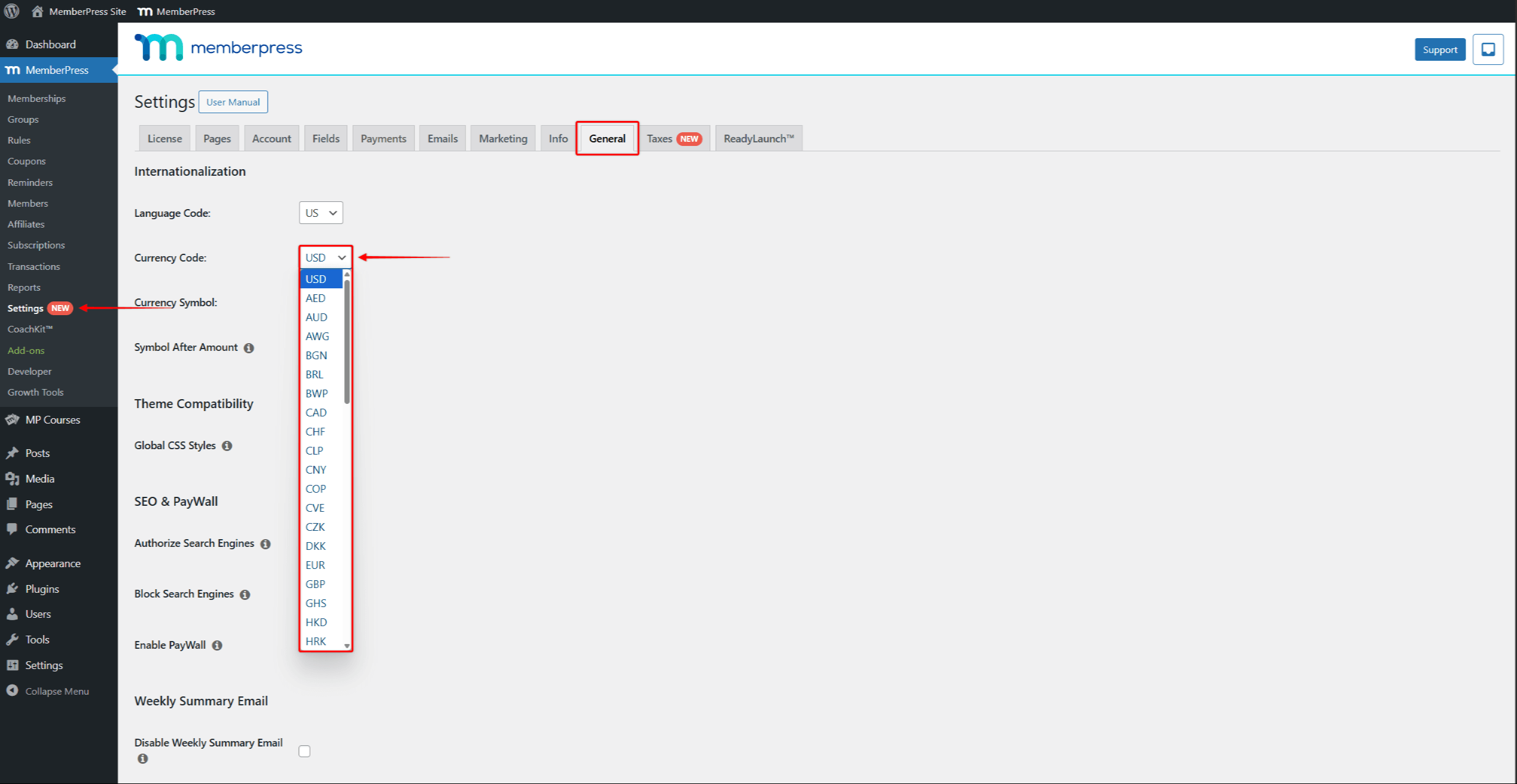
The sample code will add the Egyptian Pound (EGP) to the currency list.
//Add Currency Codes To MemberPress

function mepr_currency_codes( $codes ) {
    array_push( $codes, 'EGP' ); // Adds 'EGP' to the list of currency codes. To add a different currency, replace EGP with the three-letter currency code of the needed currency.
    return $codes; // Return the modified list of currency codes.
}
add_filter( 'mepr-currency-codes', 'mepr_currency_codes' );
You can add the code snippet to your website to the functions.php file of your child theme. As an alternative, you can use the WPCode plugin. Please check the following document for step-by-step instructions on How To Add Custom Code Snippets in WPCode.
Modifying Code Snippet
To add a different currency, you should replace EGP with the three-letter currency code of the needed currency, on this line:
array_push( $codes, 'EGP' );
You can also add multiple currencies if needed. To do this, add the three-letter currency codes of the needed currencies, separating them with a comma.
For example, to add both Egyptian Pound (EGP) and Indian Rupee (INR), the above-mentioned line of code would look like this:
array_push( $codes, 'EGP', 'INR' )