

MemberPress can sell in more than one currency. The way you add currencies depends on whether the Carrito MemberPress is enabled on your site.
With the cart enabled, MemberPress includes built-in support for multiple currencies. With the cart disabled, you can add a currency code with a code snippet. This document explains both options.
Adding Currencies with the Cart Enabled
When the cart is enabled, you can offer additional currencies without any code. Follow these steps:
- Vaya a Panel de control > MemberPress > Configuración, and open the General ficha.
- En “Additional Currencies”, check each currency you want to offer.
- Haga clic en Opciones de actualización para guardar los cambios.
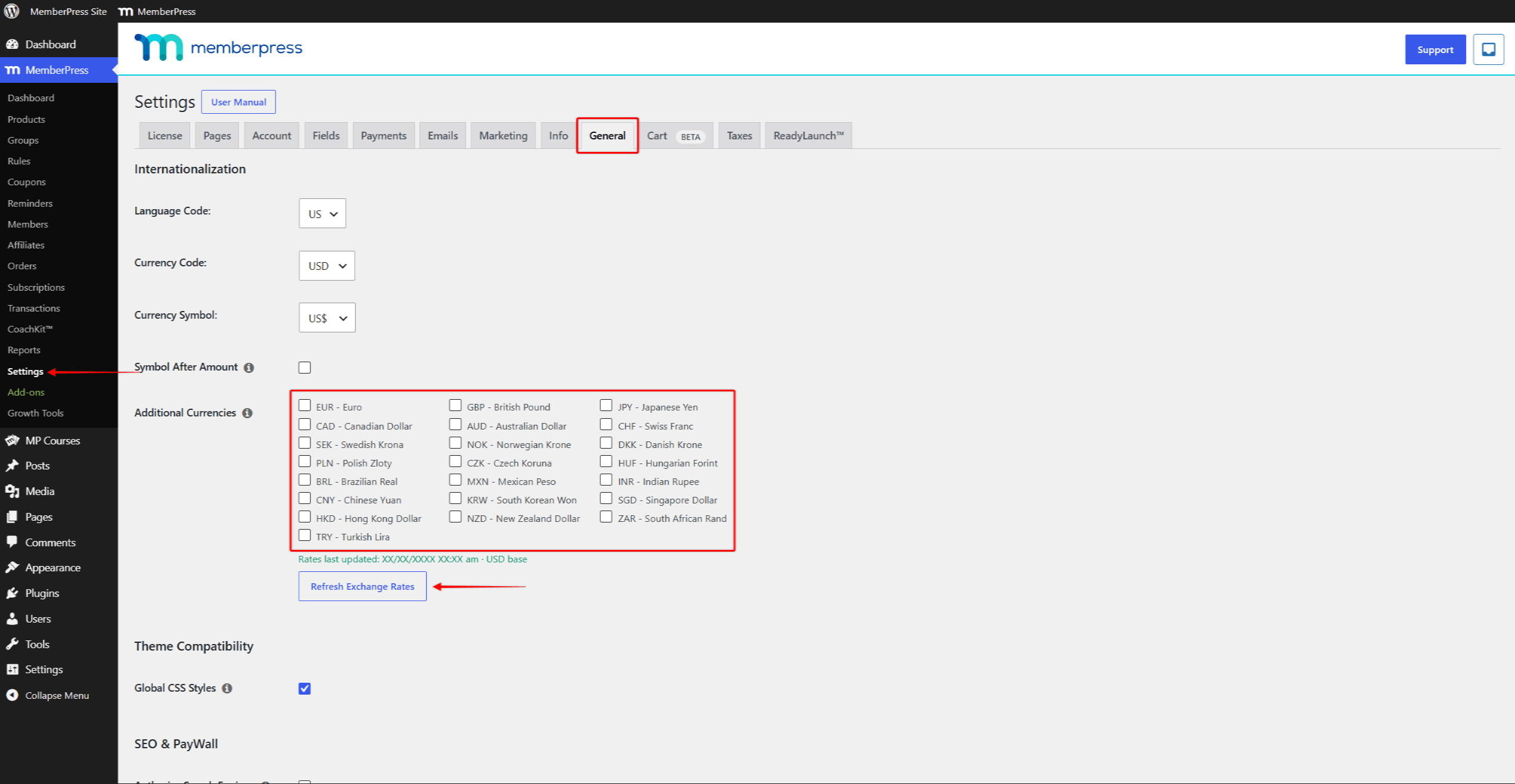
MemberPress converts prices using exchange rates based on your main currency. The date of the last update is shown below the currency list. You can click the Refresh Exchange Rates button to update the rates manually. You can also set the price in each currency manually on each product.
Customers pick their currency with the currency switcher. The switcher appears in the ReadyLaunch™ header when more than one currency is enabled. You can also place the Currency Switcher block on any page.
Adding a Currency Code Without the Cart
You may prefer to keep the cart disabled. For example, your site may need a payment gateway the cart checkout does not support. Your current registration flow may also be a better match for your design. MemberPress then supports the same currencies as the payment gateways it integrates with (Stripe, PayPal, Cuadrado, y Autorizar.net).
In this case, you can add a currency code to the MemberPress currency list with a code snippet. The sections below provide the snippet and explain how to modify it.
Añadir código de moneda a MemberPress - Fragmento de código
Este fragmento de código añadirá una divisa a la lista de divisas de MemberPress en el campo Código de moneda opción. La opción Código de moneda le permite elegir la moneda que MemberPress debe utilizar en su sitio web. Esta opción está disponible en la sección Ficha General en Panel de control > MemberPress > Configuración.
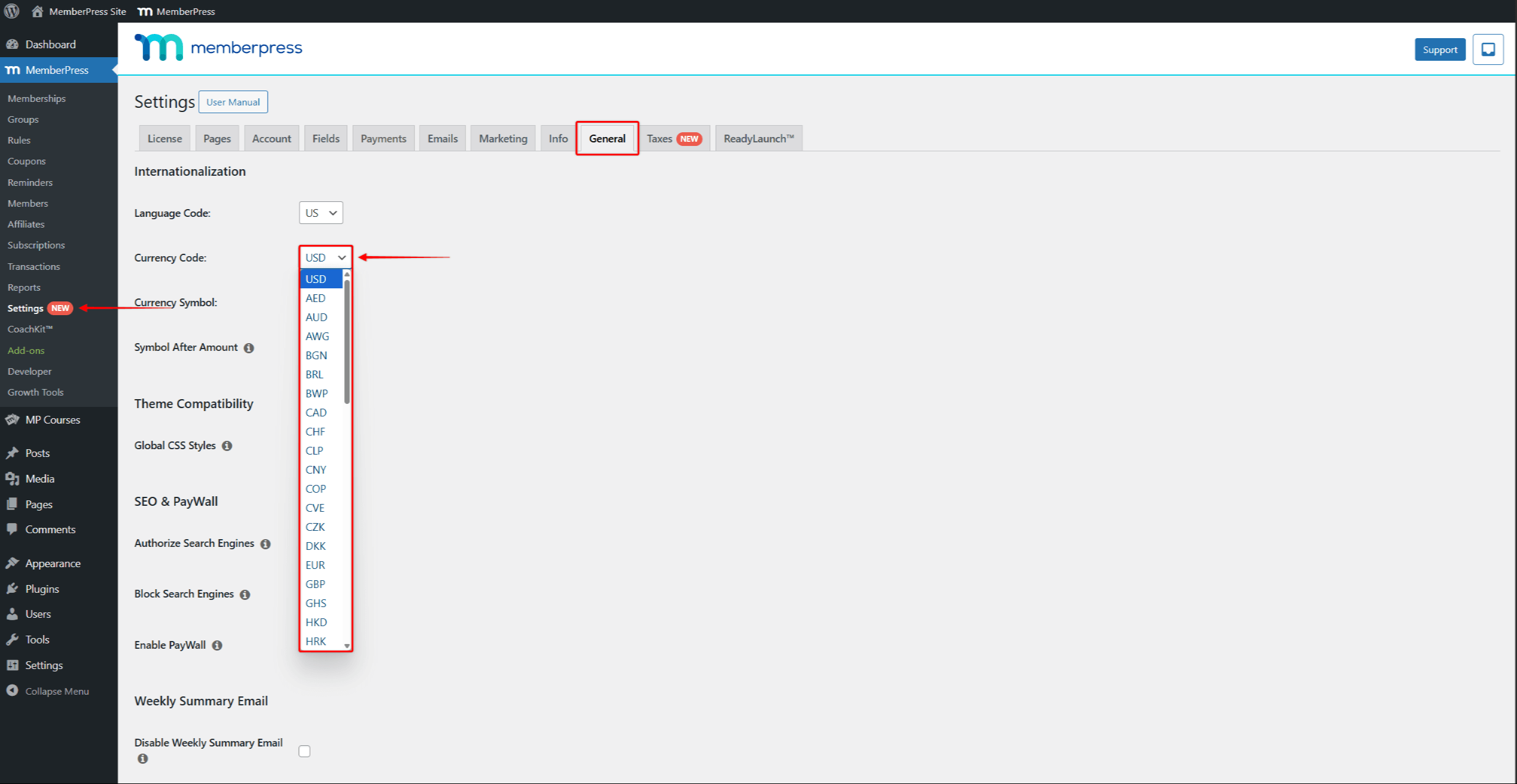
El código de ejemplo añadirá el Libra egipcia (EGP) a la lista de divisas.
/Agregar códigos de moneda a MemberPress

function mepr_currency_codes( $codes ) {
    array_push( $codes, 'EGP' ); // Añade 'EGP' a la lista de códigos de moneda. Para añadir una moneda diferente, sustituye EGP por el código de moneda de tres letras de la moneda necesaria.
    return $codes; // Devuelve la lista modificada de códigos de moneda.
}
add_filter( 'mepr-currency-codes', 'mepr_currency_codes' );
Puede añadir el fragmento de código a su sitio web en la sección funciones.php de su tema hijo. Como alternativa, puede utilizar el archivo WPCode plugin. Consulte el siguiente documento para obtener instrucciones paso a paso sobre Cómo añadir fragmentos de código personalizados en WPCode.
Modificación del fragmento de código
Para añadir una moneda diferente, debe sustituir EGP con el código de moneda de tres letras de la divisa necesaria, en esta línea:
array_push( $codes, 'EGP' );
También puede añadir varias monedas si es necesario. Para ello, añada los códigos de tres letras de las divisas necesarias, separándolas con una coma.
Por ejemplo, para añadir Libra egipcia (EGP) y Rupia india (INR)la línea de código mencionada tendría el siguiente aspecto:
array_push( $codes, 'EGP', 'INR' )








 ES
ES  EN
EN  FR
FR  DE
DE  PT
PT 