MemberPress recurring memberships come with the trial feature, allowing you to easily add paid or free trials to each membership. At the same time, this feature is not available with one-time memberships. In this case, the workaround would be to use two separate memberships.
This document will show you how to set this up so you can offer trials with one-time memberships.
Add a Trial to One-Time Memberships
This workaround can be used to add paid or free trials with one-time memberships. As an example, we will show you how to add a free trial to your existing one-time membership.
The first step would be to create your main one-time membership. You can create this membership with any terms you need.
Next, you should create a second one-time membership that will serve as a free trial membership. To set up this membership please follow these steps:
- Navigate to Dashboard > MemberPress > Products, and click the Add New Product button. The Product Type is set to “Membership” by default. Leave this default.
- Name the trial membership in a way that is relatable to your main membership, e.g. Main Membership (7-day trial).
- The price will be 0.00 by default. Leave the price set to zero to make this membership free. Free memberships will automatically be set as one-time memberships.
- In the Cart & Shop section, set Shop Page Visibility to “Hidden”. This keeps the free trial off your shop page, so customers find it only through the links you share.
- Click on the Access dropdown and select the Expire option. This will open additional Expire After settings.
- Now, under the Expire After settings select the trial period by choosing the time unit (days, weeks, months, or years) and adding the duration. In our example, we set the trial duration to 7 days.
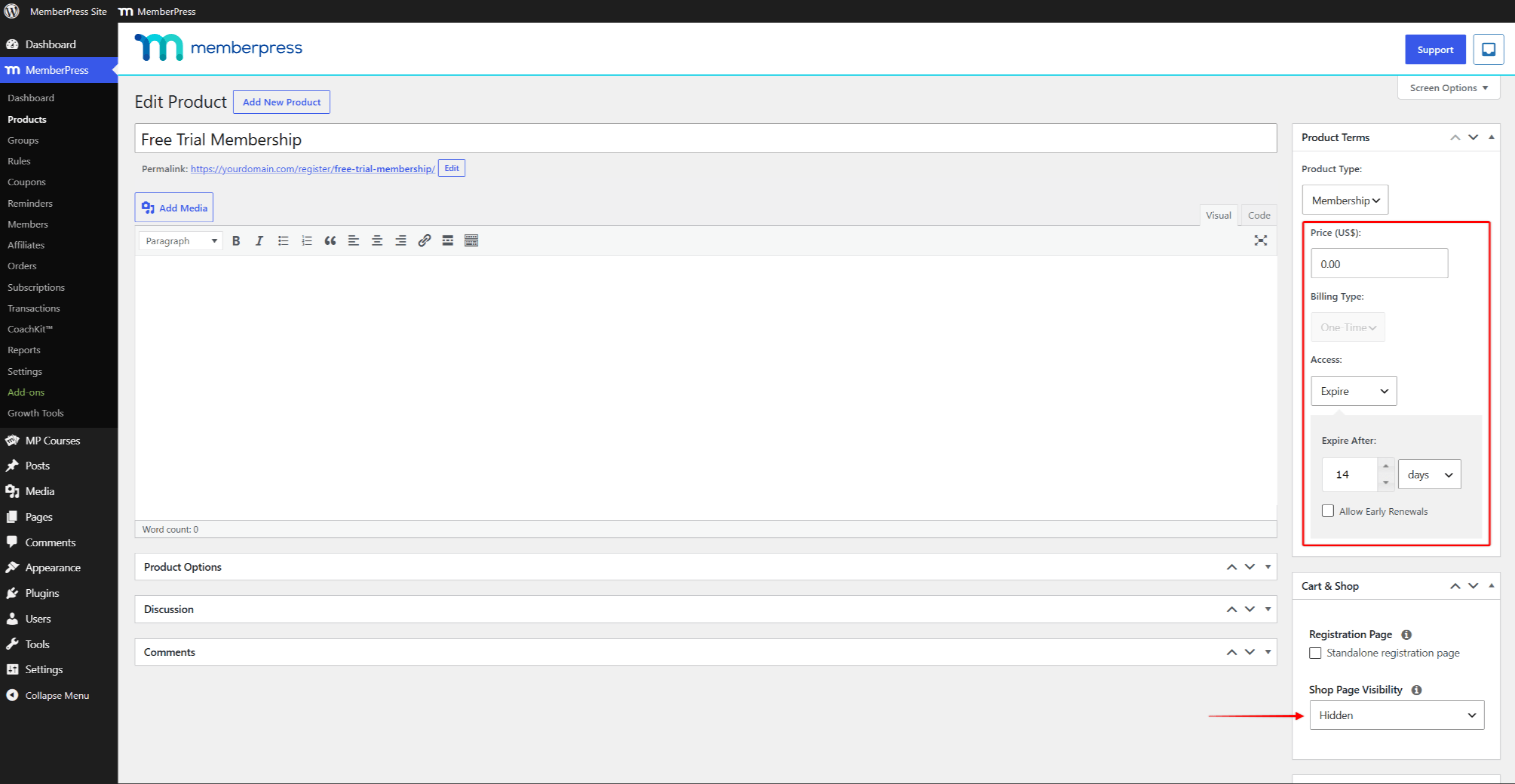
- Leave the Allow Early Renewals option unchecked.
- Click on the Publish button to create your trial membership.
Allow Only One Trial on One-Time Memberships
Trials should allow users to test your service before they subscribe to the regular membership. Thus, you should prevent users from registering for the trial membership multiple times.
To do this, please add the following additional settings to your trial membership:
- Scroll down to Product Options and click on the Permissions tab.
- Under the “Who can purchase this Product” option, choose Guests. This will allow new users to purchase this trial membership.
- Next, click on the + icon and add the additional rule for Members / who had / NOT subscribed to this product before. This will prevent any member who previously registered for this trial membership from purchasing it again.
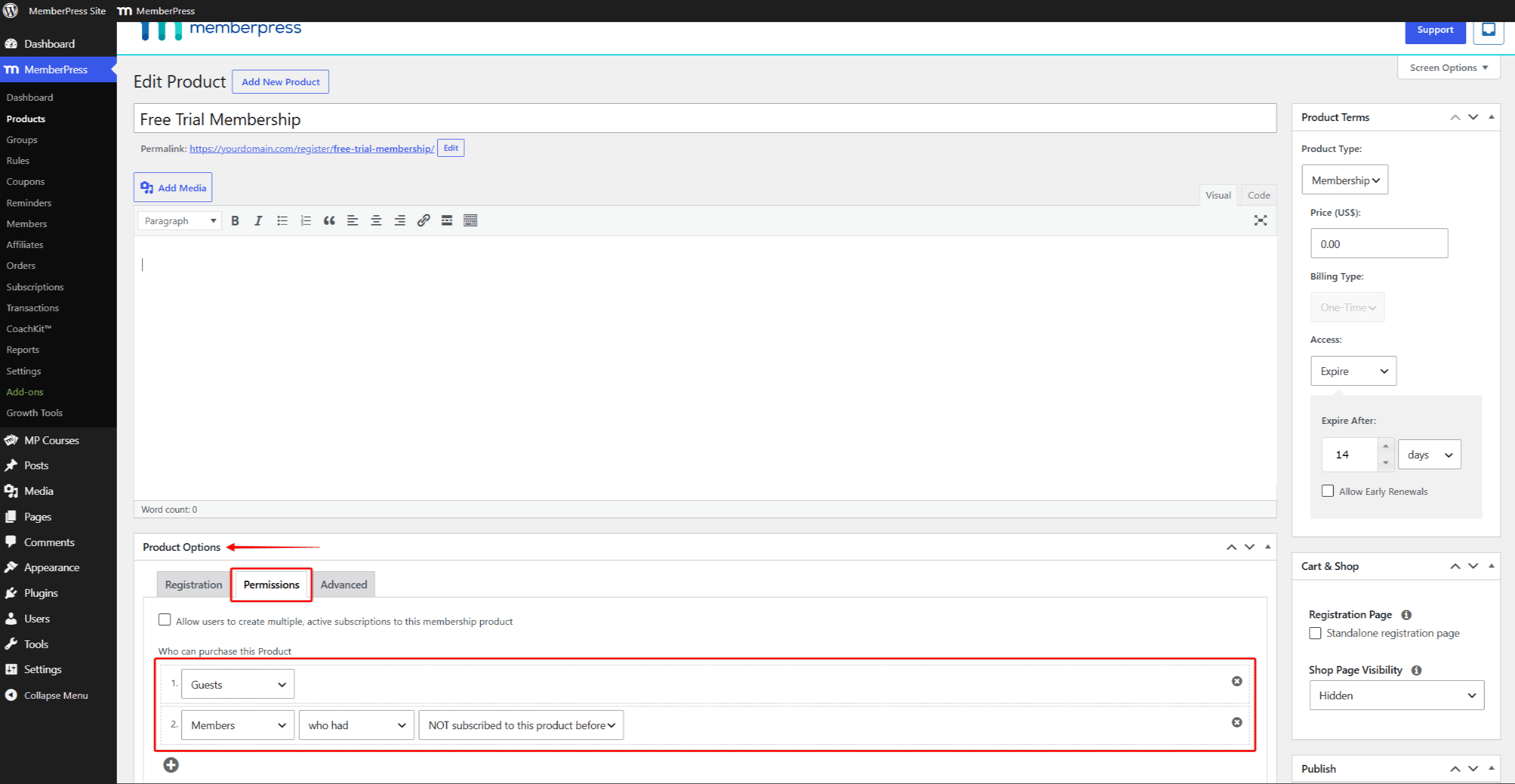
- Click on the Update button to save changes.
Switching Users To Your Main Membership
Keep in mind that your trial membership and your main membership are two separate memberships. There is no actual connection between them.
Once the trial membership expires, your members will need to purchase your main membership. Members purchase it through its standalone registration page, where they also add their payment details. When the MemberPress cart is enabled, direct members to your shop page and cart checkout instead.
Thus, you should provide users with instructions for registering for your main membership.
You can use reminders to send instructions when the trial ends automatically. Here, you would use the Before subscription expires or After subscription expires reminder.
Also, you can further create the desired user flow through your design and navigate these users to your main membership.
Registration Without Collecting Payment Details
This workaround can also be used if you have a recurring membership. In this case, the workaround will allow users to register for a trial, without adding their payment details.
Here, you would create a free membership as a trial, as previously described. Once the trial expires, you should direct your users to purchase your main recurring membership. Members submit their payment details while completing this purchase at checkout.