Memberships and groups are the essential components of a MemberPress site. Memberships allow member registration and content access control. Groups organize memberships and enable upgrades and downgrades.
This document explains how MemberPress memberships and groups work and how to use them to build a membership site. It also explains the difference between memberships and subscriptions, and the two subscription types (recurring and non-recurring).
Memberships And Products
In MemberPress, everything you sell is a product. A membership is a type of product. You create and manage memberships at Dashboard > MemberPress > Products.
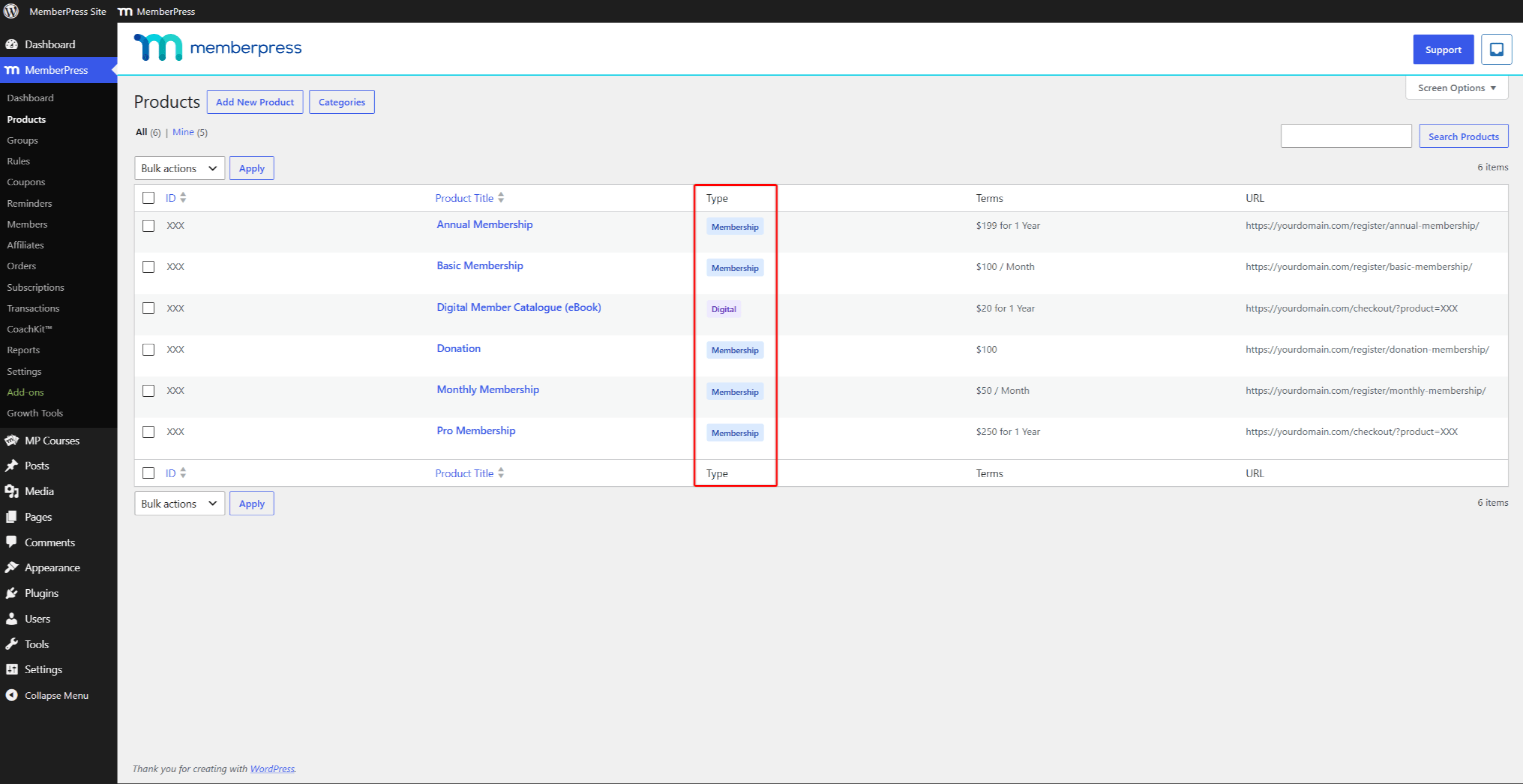
MemberPress has two product types: Membership and Digital. A membership grants members access to protected content for a set period. A digital product is a one-time purchase sold only through the MemberPress shopping cart. The cart is disabled by default, so a new site works with memberships only.
The rest of this document covers memberships, which form the membership structure of your site.
Memberships And Subscriptions
After installing and configuring MemberPress, create your memberships and build a membership structure.
A membership is the primary component of the membership structure. Each membership represents one level in the structure. It has its own price, duration, renewal rules, permissions, and registration page.
Based on the membership structure, you protect your content with MemberPress rules. Rules give members of specific memberships access to specific content.
Users are members of a membership while they have an active subscription to it. MemberPress creates a subscription each time a user registers for a membership. By default, users register for one membership at a time through its registration page.
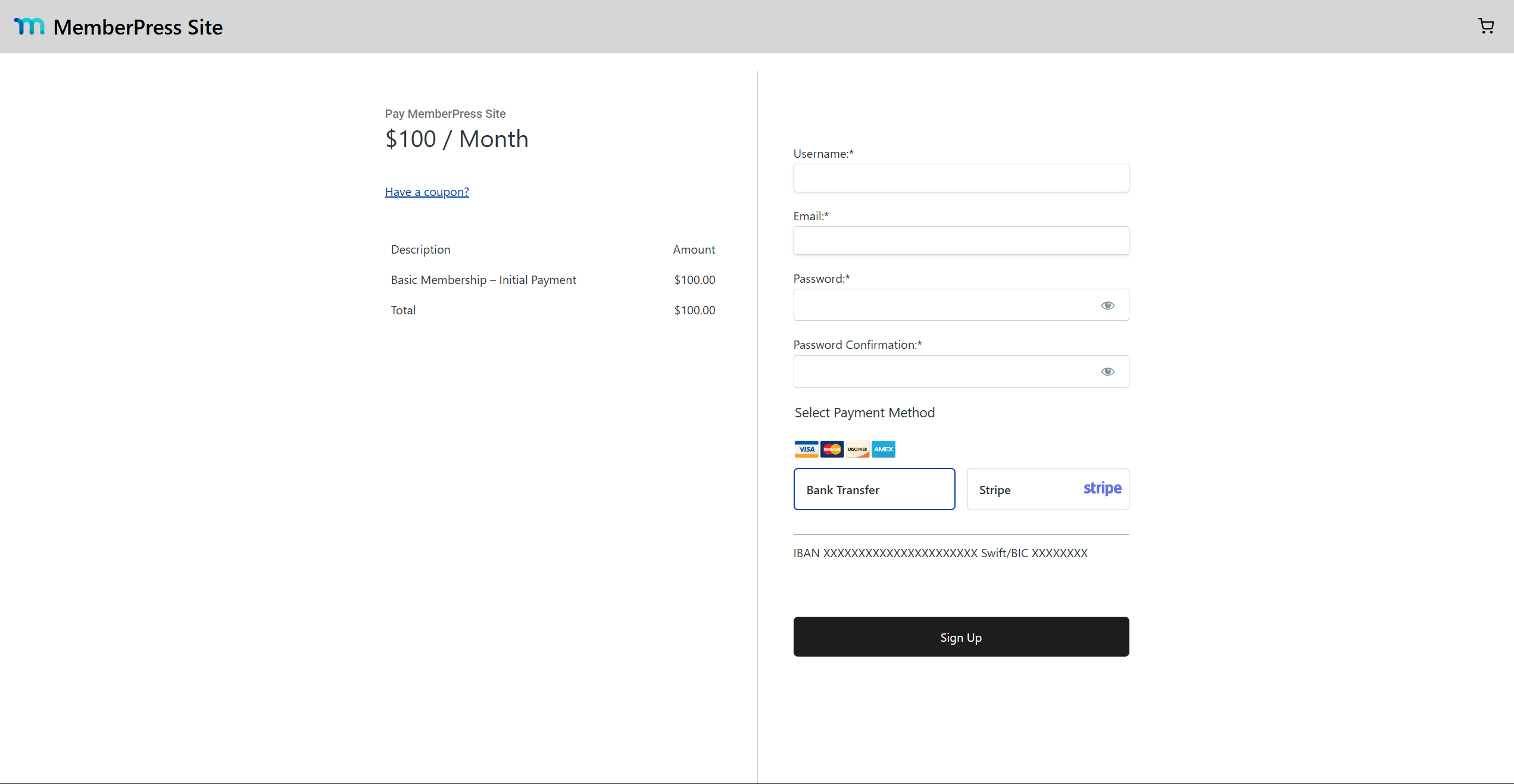
Once a subscription expires, the member loses access to all content protected for that membership.
Subscription Types
A subscription is a time-based registration for a specific membership. Its price, duration, and renewal depend on the membership terms.
MemberPress creates a WordPress user profile when a user registers for the first time. On every registration, MemberPress also creates a transaction.
Each user can have multiple subscriptions to different memberships. All subscriptions appear on the user’s profile.
Subscriptions are either One-Time (non-recurring) or Recurring.
One-Time Subscriptions
One-time subscriptions expire on the expiration date of the related transaction. Users must register again to subscribe for a new period.
The exception is a one-time subscription with access set to Lifetime. This subscription never expires and needs no further registrations.
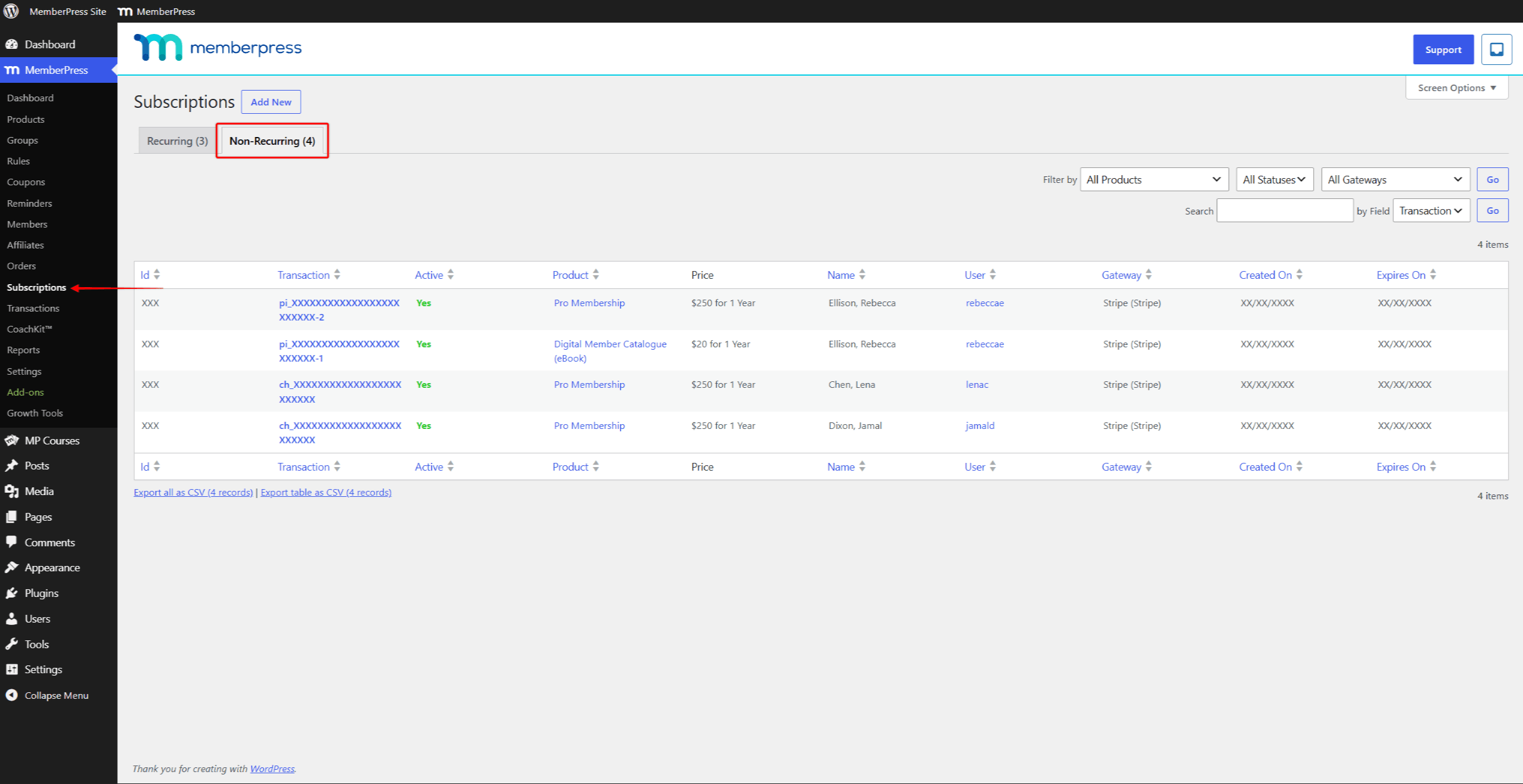
All one-time subscriptions are listed under the Non-Recurring tab at Dashboard > MemberPress > Subscriptions.
Recurring Subscriptions
Recurring subscriptions renew automatically when the current transaction expires.
When a user registers for a recurring subscription, MemberPress creates the subscription alongside the transaction. On renewal, MemberPress adds a new transaction under the existing subscription for the next period.
Renewals continue for every subscription period until the user or an administrator cancels the subscription. A canceled subscription expires when its current transaction expires.
All recurring subscriptions are listed under the Recurring tab at Dashboard > MemberPress > Subscriptions.
Membership Terms
Each membership needs configured membership terms. MemberPress creates every subscription to that membership according to these terms. The terms are set in the Product Terms section of the membership edit screen.
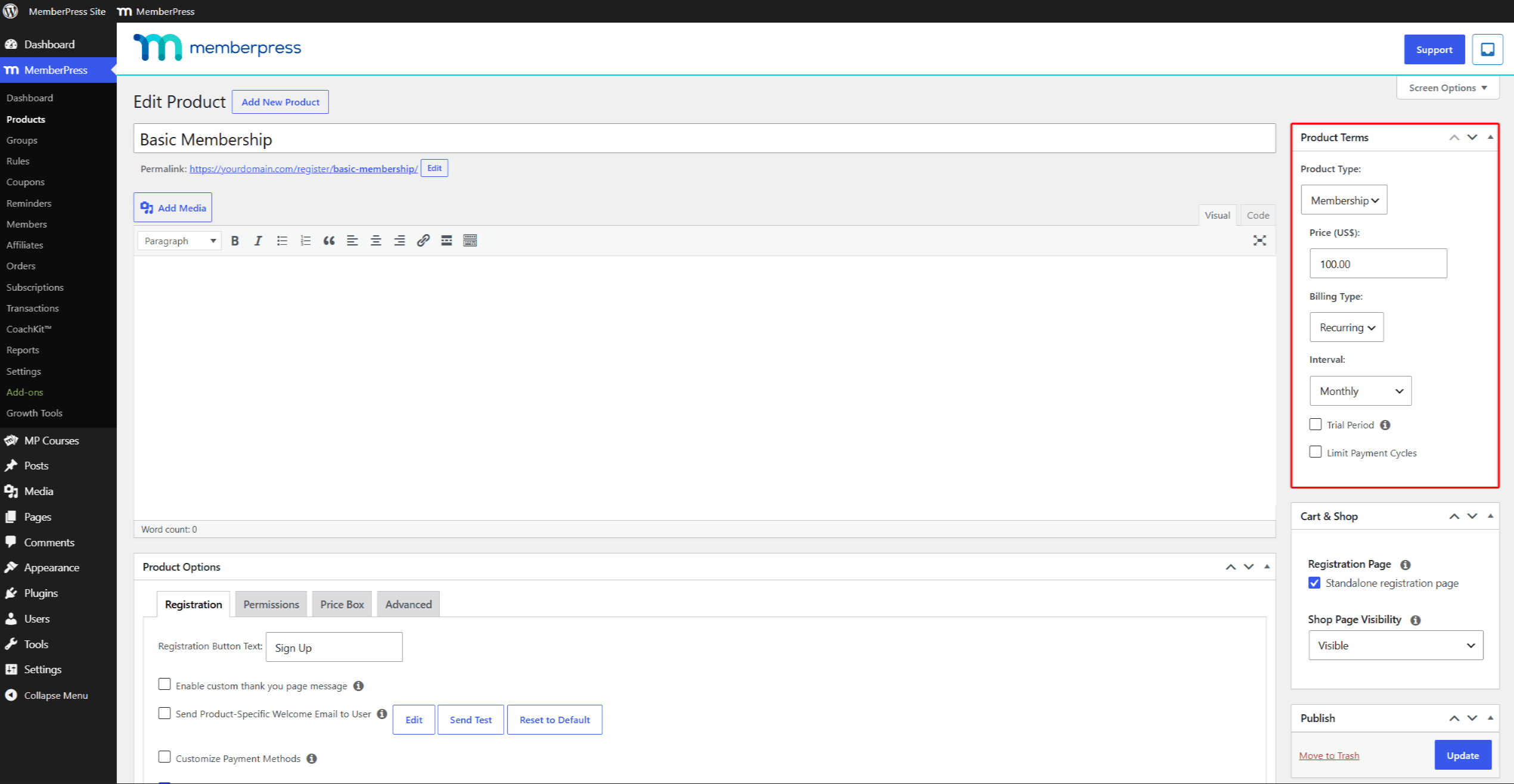
- Price: the price of one subscription period. Each membership has one price in one currency. The currency for all products is set at Dashboard > MemberPress > Settings > General tab;
- Billing Type: the choice between One-Time and Recurring subscriptions for this membership.
Additional settings depend on the billing type:
- One-Time:
- Access: the length of the one-time subscription period. If set to Lifetime, the subscription never expires.
- Recurring:
- Interval: how long each subscription period lasts before automatic renewal;
- Trial Period: when enabled, the subscription starts with a trial period. After the trial, MemberPress charges the subscription automatically;
- Limit Payment Cycles: one payment cycle equals one subscription period. When enabled, the subscription cancels automatically after the set number of cycles.
MemberPress Groups And Pricing Pages
You can organize memberships into MemberPress groups. Groups allow upgrades and downgrades between the memberships they contain. Only membership-type products can be added to a group.
When you create a group, MemberPress generates a pricing page for it.
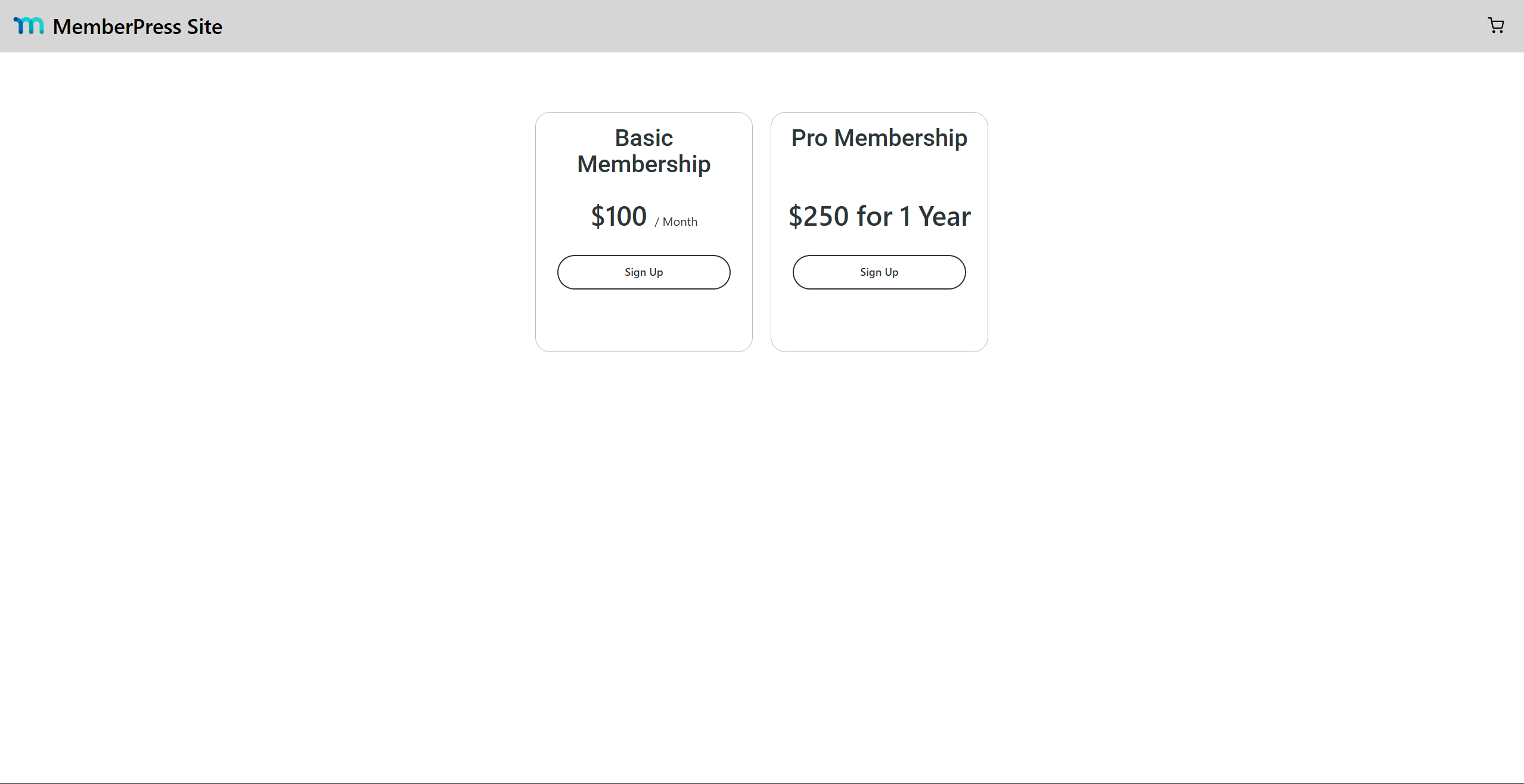
The pricing page shows a price box for every membership in the group. Each membership price box is generated from the membership terms and the membership product options. Users compare memberships on this page and register directly from the call-to-action button.
Upgrading And Downgrading
To allow upgrades and downgrades, add memberships to the Membership Products field in the group options.
Add memberships from the lowest level to the highest. This creates a membership hierarchy within the group.
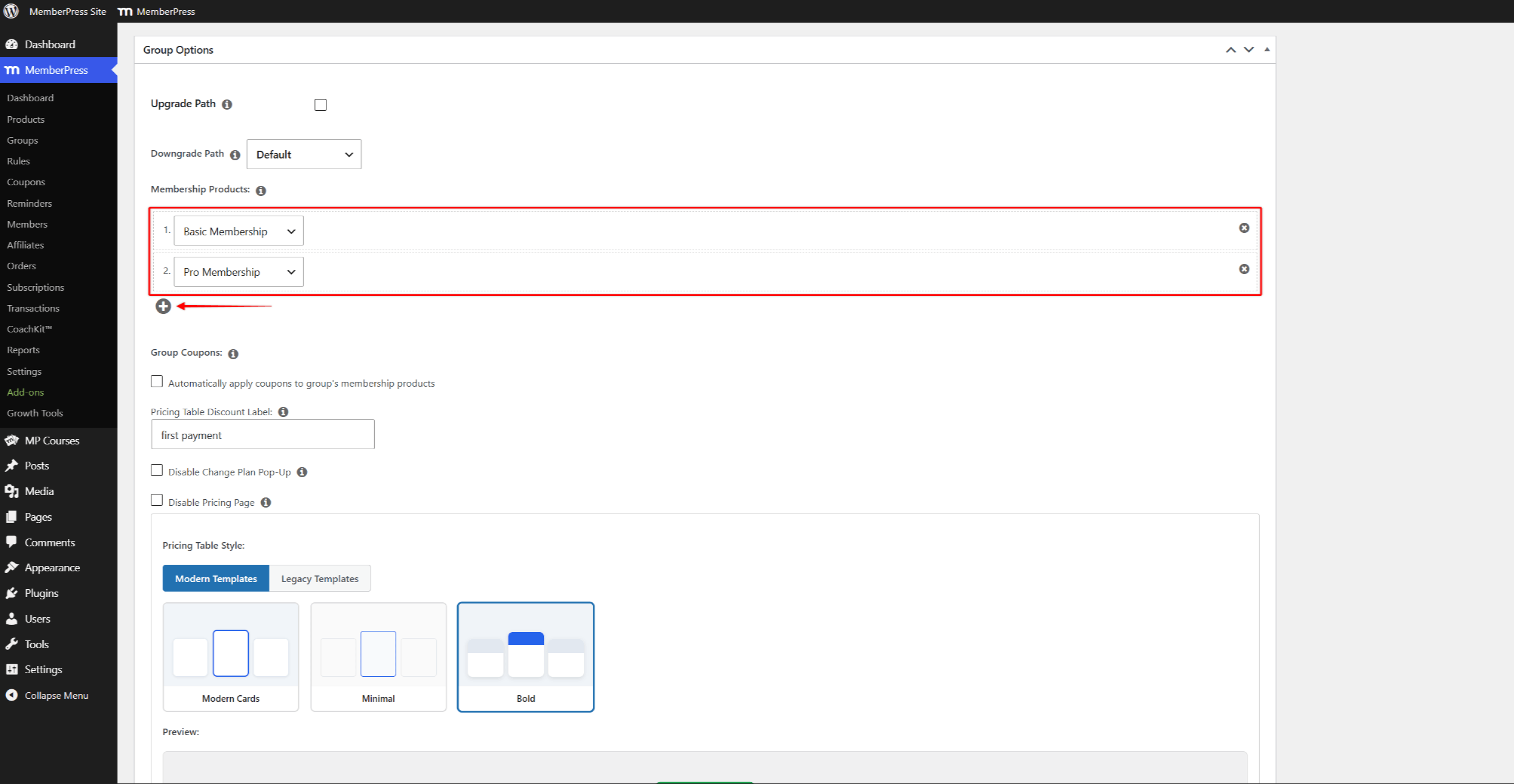
Next, enable the Upgrade Path option. Members can then switch from their current membership to any other membership in the same group.
Members switch memberships by clicking the Change Plan link on their current subscription at Account > Subscriptions.
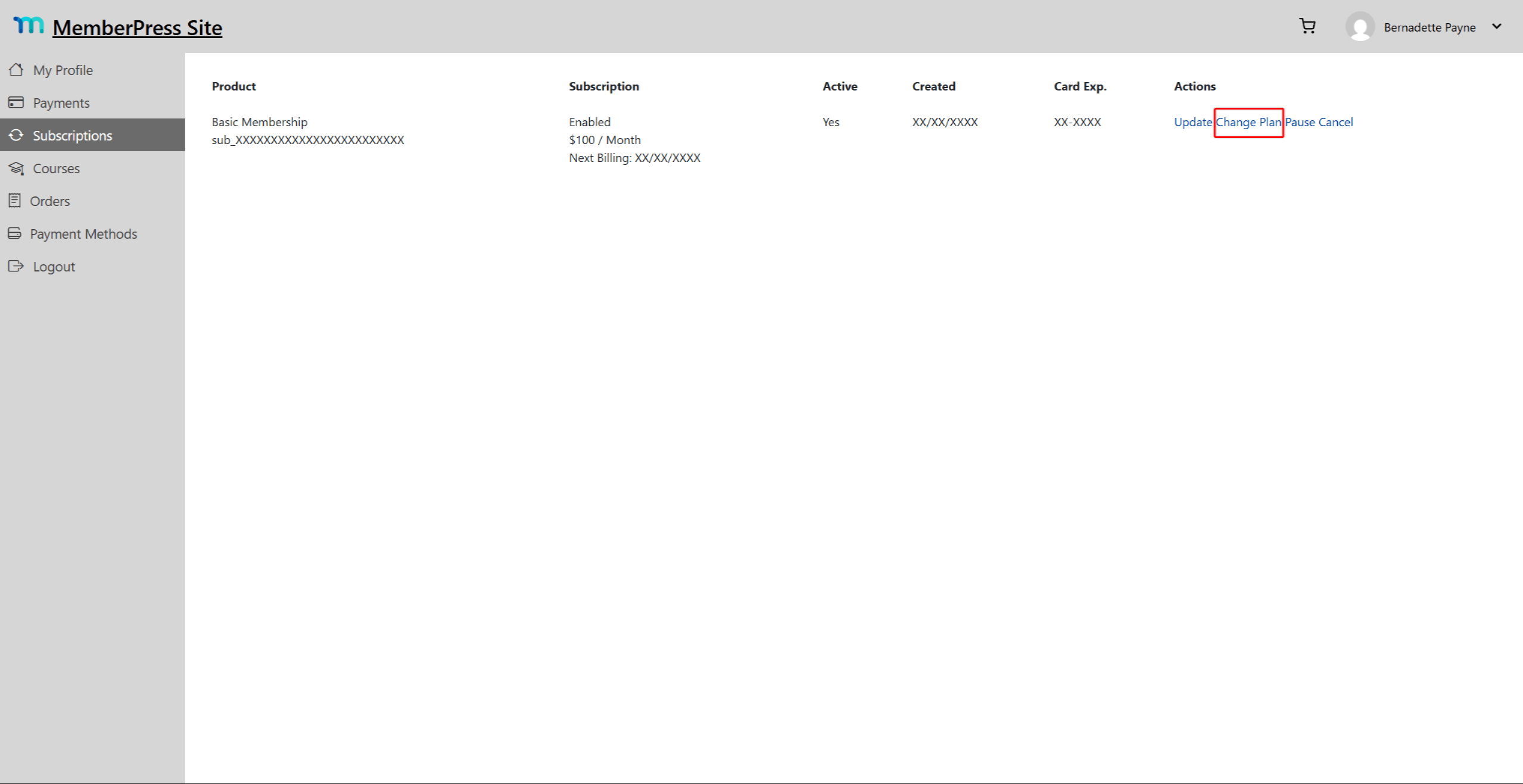
On an upgrade or downgrade, MemberPress cancels and expires the current subscription. At the same time, it creates a new subscription for the membership the member switched to.