

MemberPress simplifies registration and subscription payments by offering several payment options. It collects offline payments and integrates with Stripe, PayPal, Square, and Authorize.net for online payments.
This document explains how MemberPress payment gateways work and how MemberPress processes payments.
MemberPress Zahlungs-Gateways
When you enable a payment gateway in MemberPress settings, it adds a payment option to your registration pages.
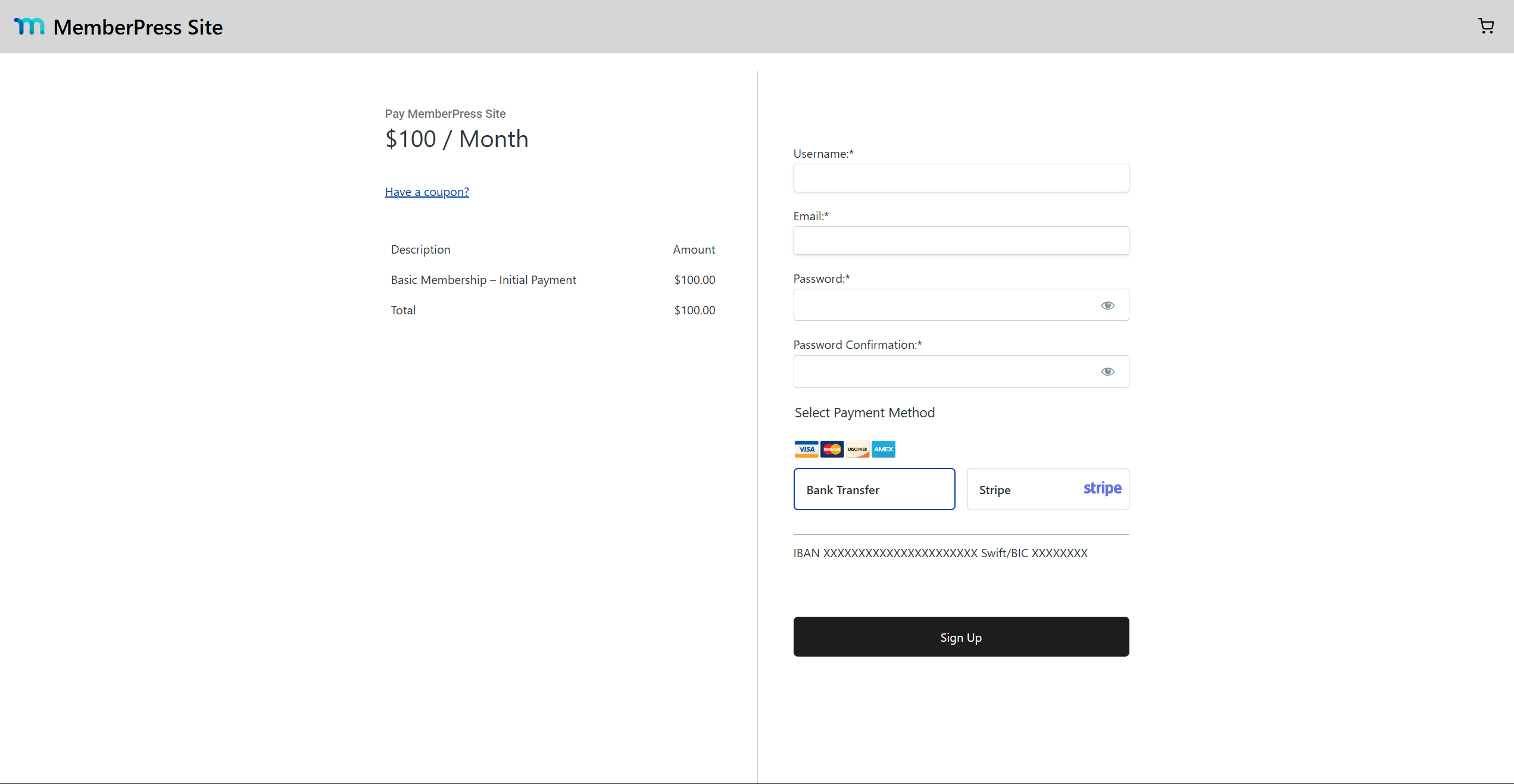
You can offer one or several payment methods, supporting both offline and online payments.
Wenn Sie die Option MemberPress shopping cart, the cart checkout uses the same gateways. Each gateway has an Enable for cart option, disabled by default. The cart checkout supports Stripe and offline payments only. PayPal, Square, and Authorize.net work on registration pages only.
Online- vs. Offline-Zahlungen
Offline payments are not collected on your website. Members pay by bank transfer or another method outside the site. When a member chooses an offline payment method, MemberPress creates a transaction and marks it as pending. You update its status manually once the payment arrives in your bank account.
Online payments are processed instantly by payment processors like Stripe, PayPal, or Square. Payment processors act as intermediaries that let merchants charge credit cards. During registration, MemberPress sends the user to a secure payment form provided by the processor. Once the payment completes, MemberPress creates and updates the transaction automatically. It activates or deactivates the subscription based on the payment status.
Payment forms appear either on a separate page or embedded in the registration page. Either way, the payment processor hosts them. Users submit their card details to the processor, never to your website.
Einrichten von Zahlungsarten
To accept payments, configure a payment method for each gateway:
- Navigieren Sie zu Dashboard > MemberPress > Einstellungen > Zahlungen tab.
- Klicken Sie auf Zahlungsmethode hinzufügen am Ende der Seite.
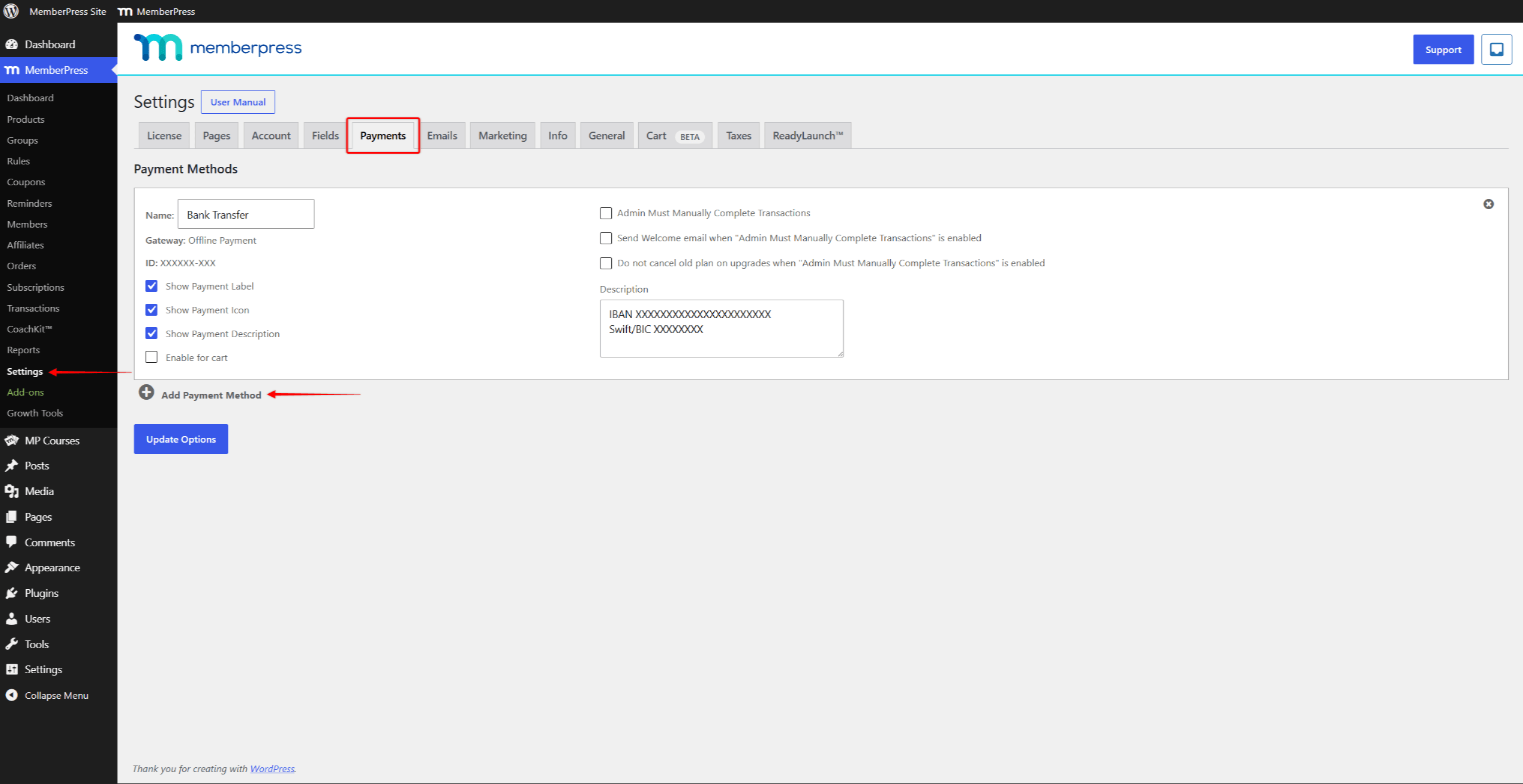
- Name die Zahlungsmethode. Dieses Etikett erscheint auf den Registrierungsseiten.
- Choose whether to display the Zahlungsaufkleber, Icon, oder Beschreibung für diese Zahlungsmethode auf den Registrierungsseiten.
- Wählen Sie eine Gateway für diese Zahlungsmethode. Für Offline-Zahlungen wählen Sie Offline-Zahlung und das Offline-Zahlungsgateway konfigurieren.
- For online payments, connect the payment method to a processor. Choose between Streifen, PayPal Vollständige Zahlungen, Quadratischund Authorize.net. The dropdown also offers PayPal Standard (Legacy) for older setups. Each online gateway has its own settings and Einschränkungen.
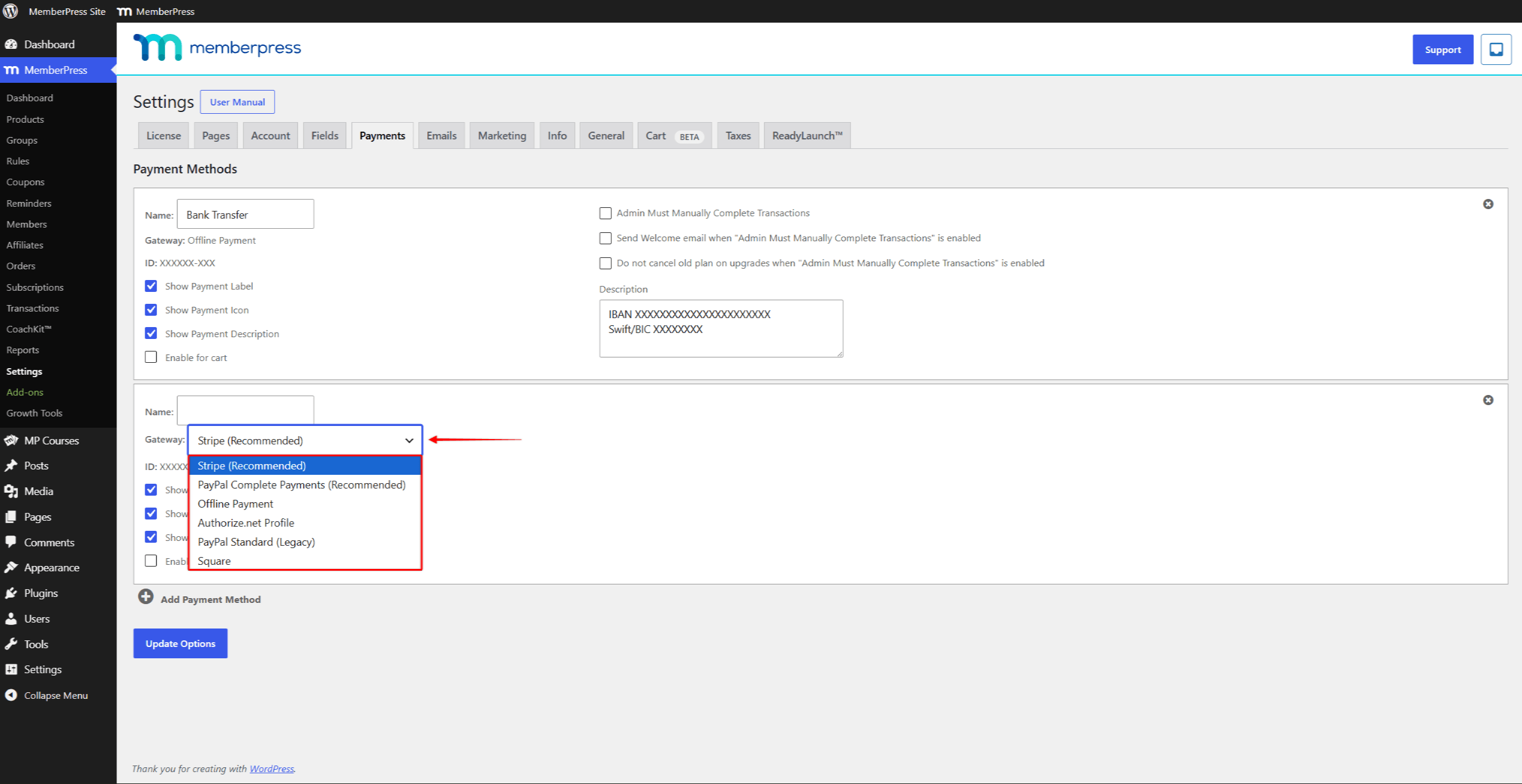
- Klicken Sie auf die Optionen aktualisieren um die Änderungen zu speichern.
Verarbeitung von Online-Zahlungen
Online and offline payments follow different processes. Online payments require communication between MemberPress and the connected payment processor.
The process also differs for one-time and recurring subscriptions.
Einmalige Abonnements
For one-time subscriptions, the processor handles the payment in the following steps:
- On registration, MemberPress sends the membership terms and user data to the processor.
- The processor collects the card details securely and processes the payment.
- The processor returns the transaction data to MemberPress.
- MemberPress uses the received data to create the Transaktion auf Ihrer Website.
- The one-time subscription becomes active. It expires when the transaction on your website expires.
Wiederkehrende Abonnements
Recurring subscriptions add a few steps:
- On registration, MemberPress sends the transaction data and also creates a subscription on the payment processor.
- The processor collects the payment details, processes the payment, and returns the data to MemberPress.
- MemberPress creates the transaction and the Abonnement auf Ihrer Website.
- MemberPress links the transaction to the subscription.
- The recurring subscription becomes active. When the current transaction expires, the subscription renews.
On renewal dates, the processor charges the user automatically based on the subscription created at registration. When MemberPress receives the renewal data, it adds a new transaction to the existing subscription. The new transaction extends the subscription by one period.
The processor keeps renewing the subscription until a member or an administrator cancels it in MemberPress. Canceling in MemberPress tells the processor to stop renewals.
Verarbeitung von Offline-Zahlungen
Offline payments are simpler to process because no external service is involved. On the other hand, you manage them manually.
The process depends on your offline gateway settings. The Admin muss Transaktionen manuell abschließen option is on the Zahlungen im Reiter Dashboard > MemberPress > Einstellungen. By default, this option is disabled.
With the option disabled, new transactions get the Vollständig status. The subscriptions become active at once.
This means members gain access to protected content before you confirm the payment.
Offline-Zahlungen manuell abschließen
The recommended setup enables the Admin muss Transaktionen manuell abschließen option. New transactions then get the Anhängig status, and their subscriptions stay inactive.
You update the transaction status manually after confirming the payment. When a user chooses the offline payment method, the process includes the following steps:
- MemberPress creates a transaction with the Anhängig status on your website.
- For recurring subscriptions, MemberPress also creates the related subscription.
- You collect the offline payment from the user (for example, by bank transfer). This includes sending a (proforma) invoice if your country requires it.
- Once the payment arrives, navigate to Dashboard > MemberPress > Vorgänge and find the user’s transaction.
- Klicken Sie auf die Anhängig status under the Status column to open the dropdown.
- Change the status to Vollständigund klicken Sie auf Speichern Sie.
As a result, the subscription becomes active, and the user gains access to the protected content.
For recurring subscriptions, MemberPress does not create new transactions on renewals. For each renewal, collect the offline payment first. Then add the new transaction manually to the existing subscription.











 DE
DE  EN
EN  ES
ES  FR
FR  PT
PT 