

The MemberPress cart allows customers to purchase multiple products in a single checkout. It adds a shop page, a cart page, and a cart checkout to your site.
This document explains what the cart is, how to enable it, and which product types it sells. It also describes the pages, blocks, orders, and emails the cart adds.
How the MemberPress Cart Works
The cart works like a standard online store. Customers browse the shop page, add products to the cart, and pay once at checkout.
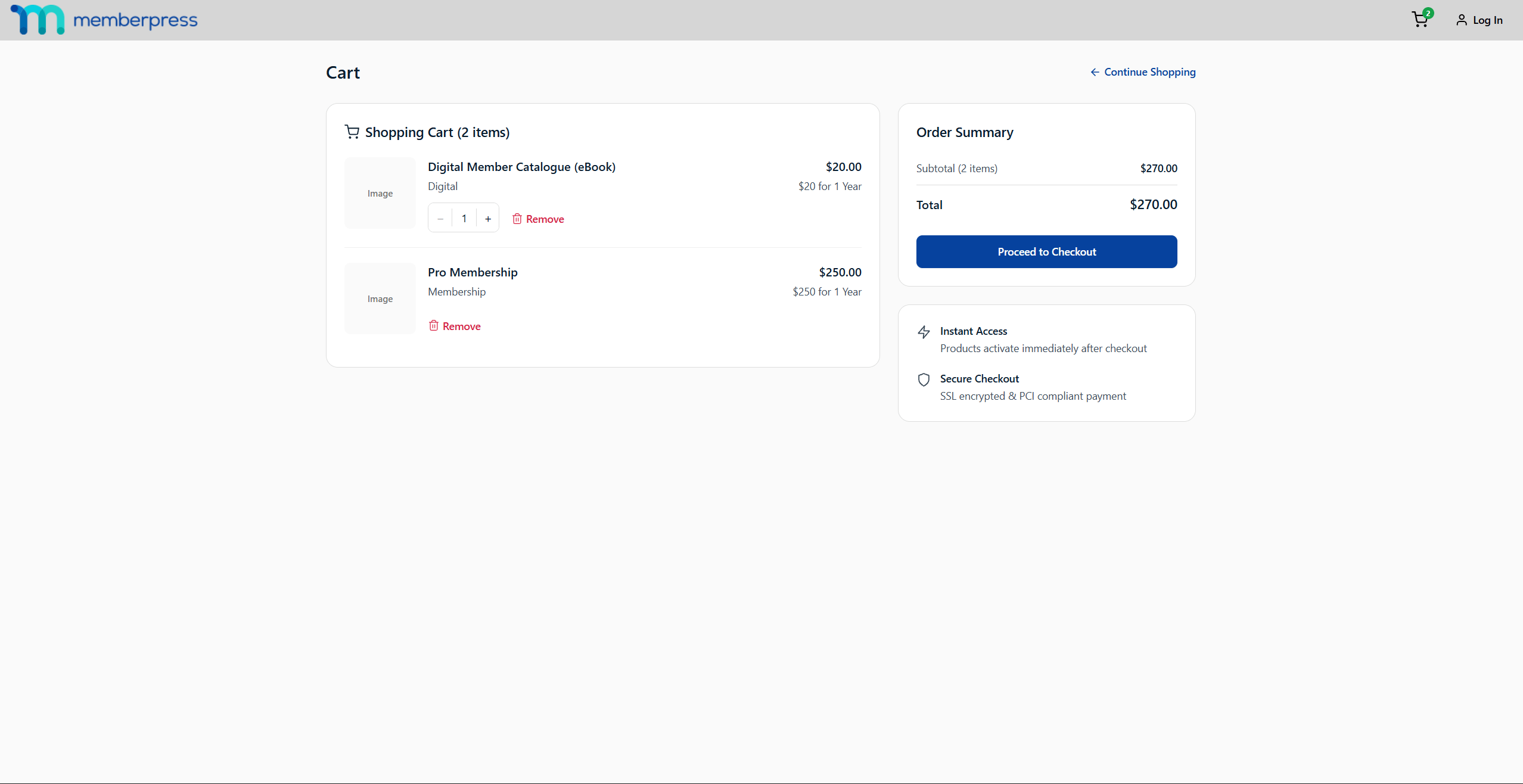
Each completed purchase creates one order. The order records all purchased items, the amounts, and the payment details in one place.
The cart is optional and is turned off by default on every installation. Products sell through their standalone registration pages until you enable the cart. Standalone registration pages remain fully supported whether the cart is on or off.
Enabling the Cart
MemberPress displays a dismissible notice in the WordPress admin pointing to the cart settings. You can enable the cart at any time by following these steps:
- Vaya a Panel de control > MemberPress > Configuración, and open the Carrito ficha.
- Haga clic en el botón Enable Cart checkbox. A confirmation popup opens, explaining what the cart turns on.
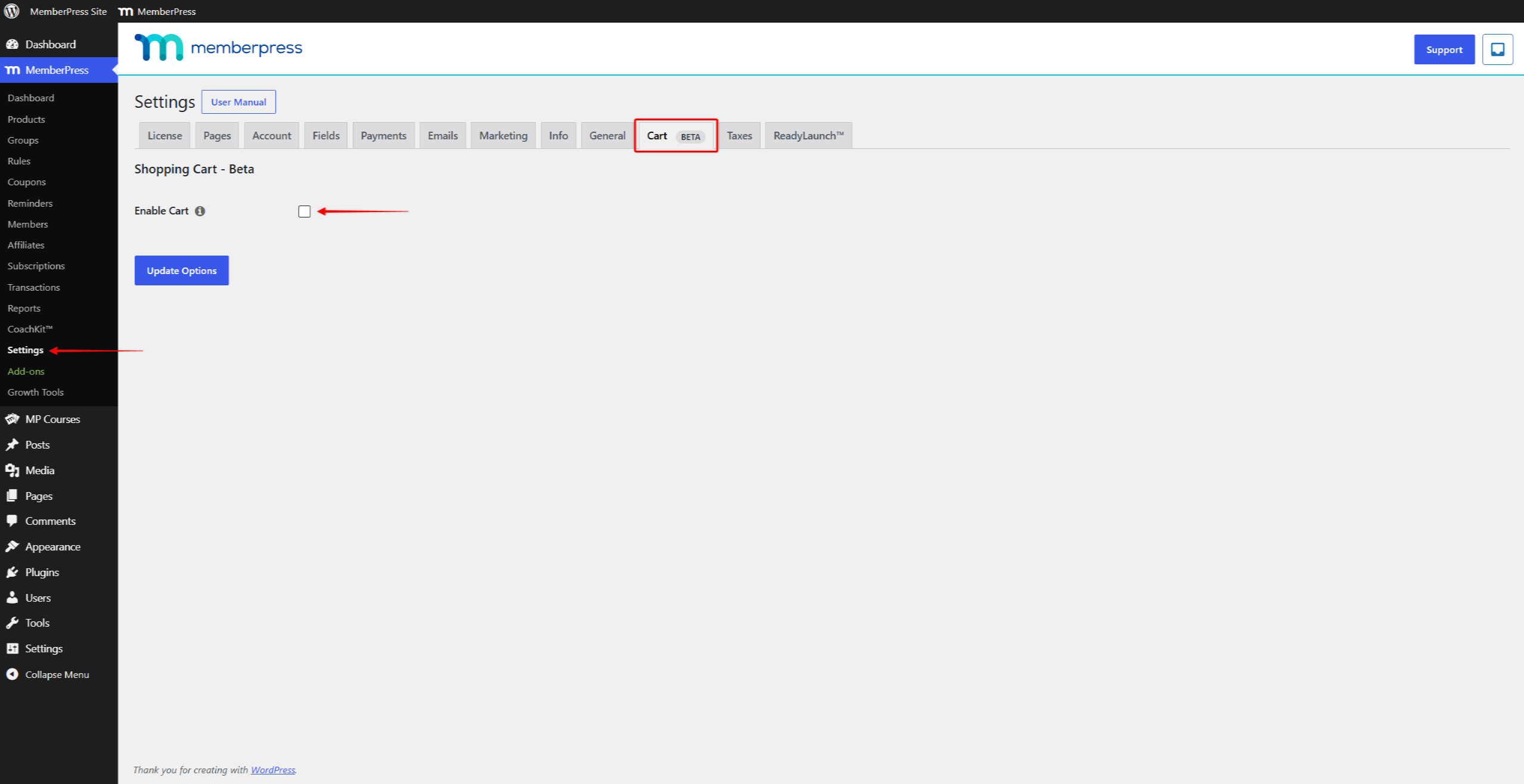
- Review the popup, and click the confirmation button to continue. The checkbox becomes checked, and the Checkout Settings section appears below it.
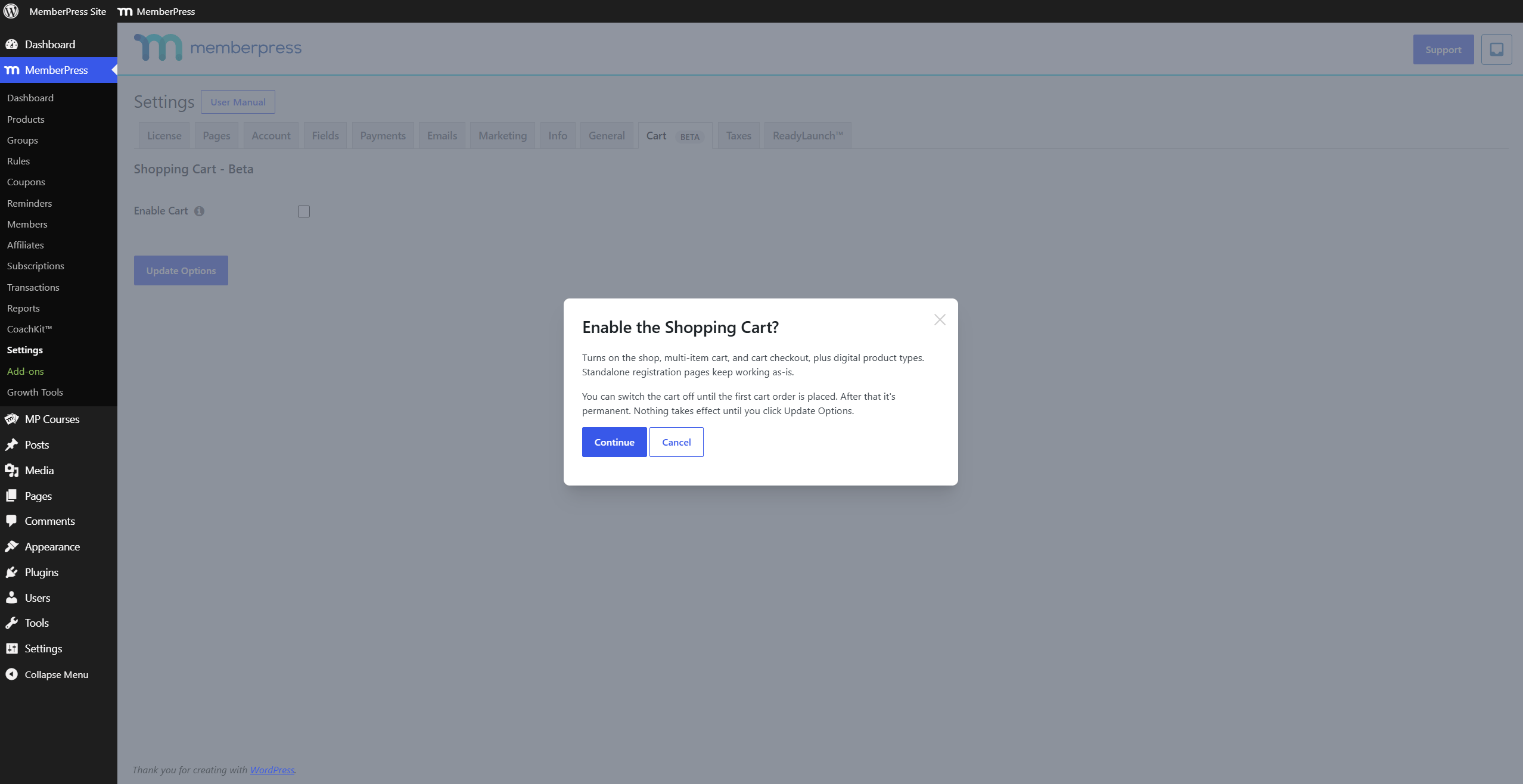
- Review the checkout settings, and adjust them as needed.
- Haga clic en Opciones de actualización en la parte inferior de la página.
The cart is not active until you click Opciones de actualización. After saving, the shop, cart, and checkout pages start working as your store. The Orders menu item appears under Cuadro de mandos > MemberPress on the next page reload.
Disabling the Cart
You can turn the cart off again while no cart orders exist. Uncheck Enable Carty haga clic en Opciones de actualización. Your membership products then sell through their standalone registration pages again.
Your checkout settings are saved when you disable the cart. They are restored if you enable the cart later. The Orders menu item is hidden while the cart is disabled.
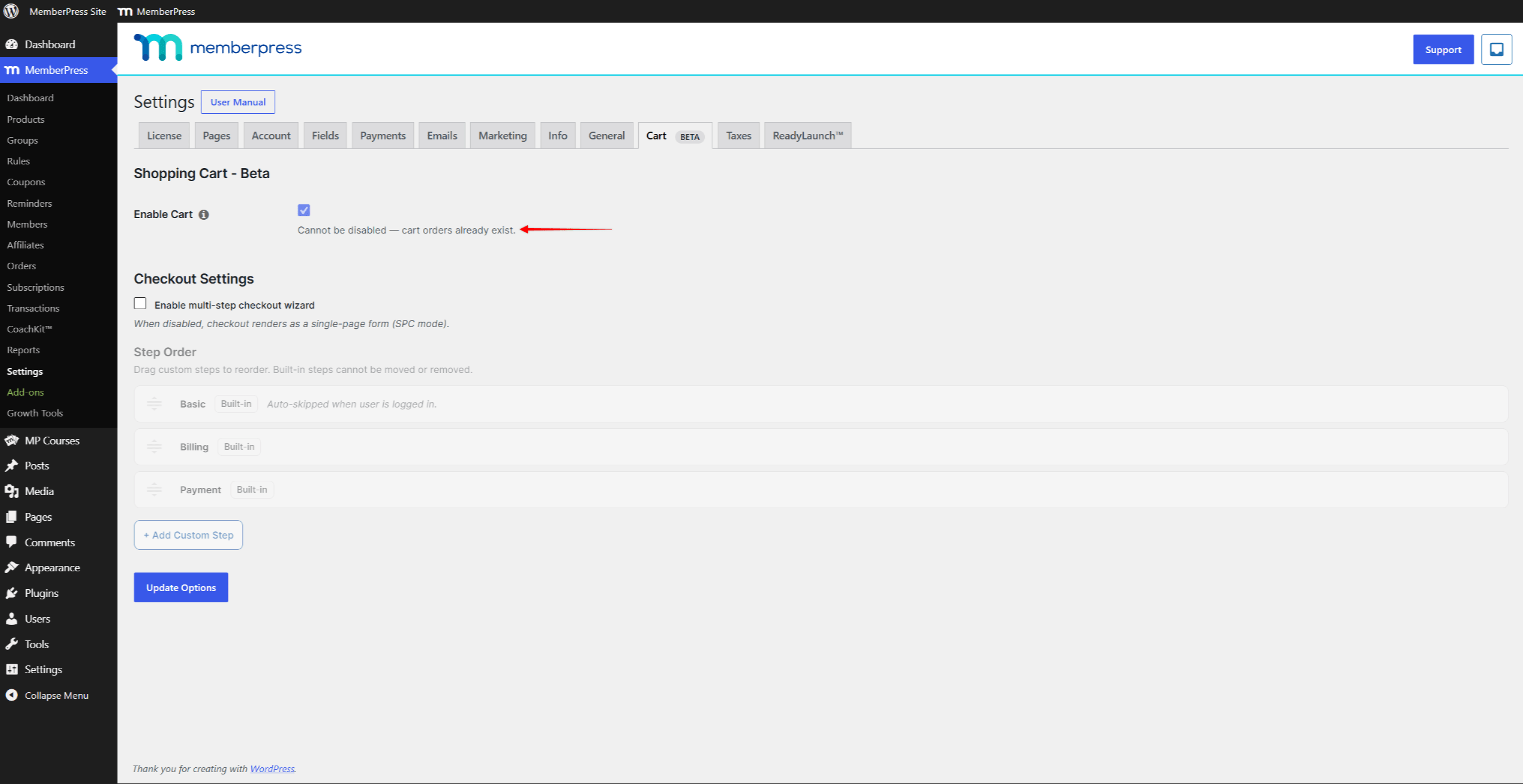
Once a customer completes the first cart purchase, the cart becomes permanent. The Enable Cart option locks with the “Cannot be disabled — cart orders already exist.” mensaje.
Products and Product Types
With the cart, MemberPress sells products. A membership is one type of product, so both terms remain in use.
Vaya a Panel de control > MemberPress > Productos to manage all your products. On this screen, the “Type” column shows the product type of each product.
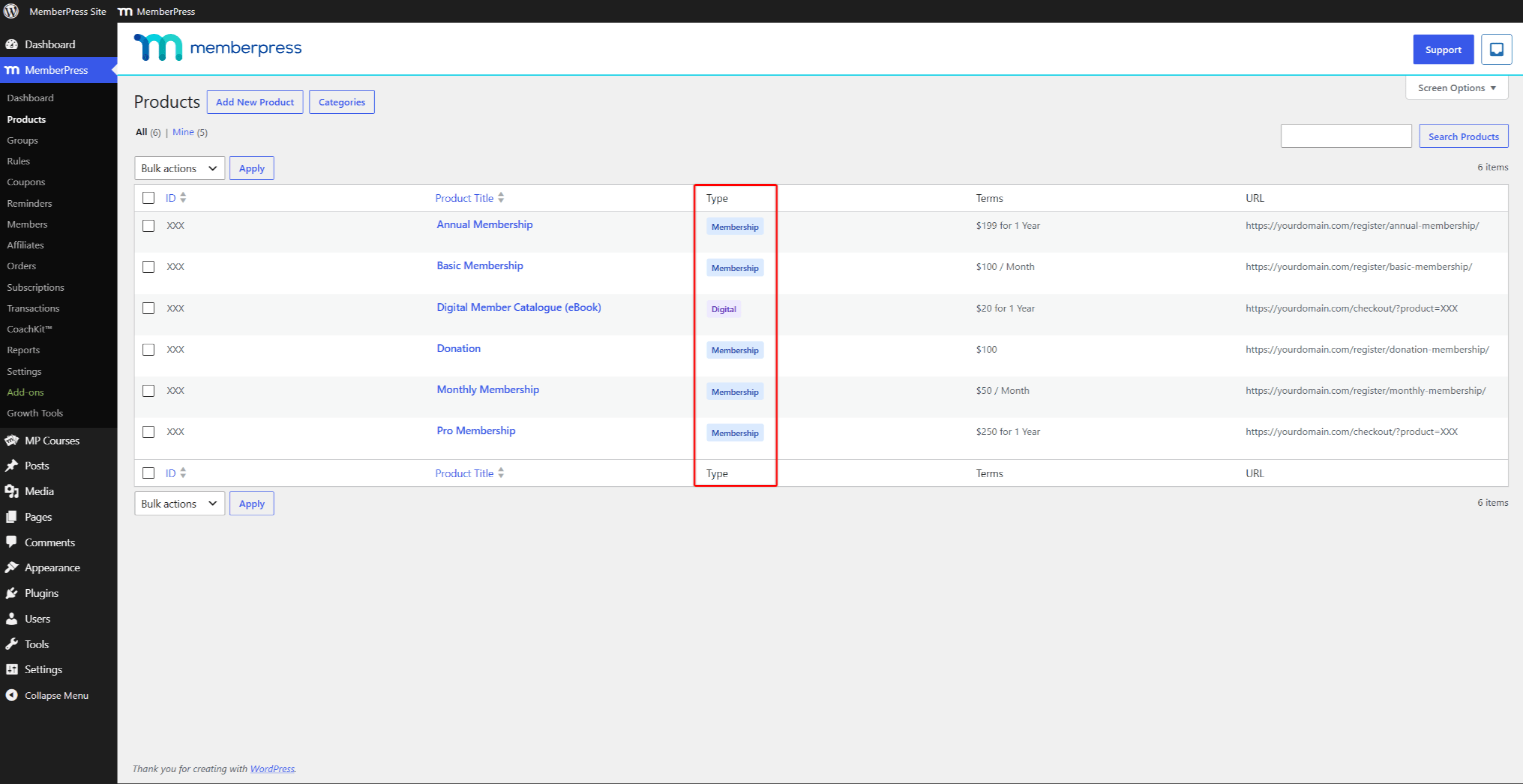
MemberPress offers two product types:
- Afiliación – grants access to protected content, and supports recurring or one-time billing;
- Digital – a one-time purchase, designed for downloadable or non-recurring items.
You select the type when creating a product. The process of creating memberships remains the same as before.
The Cart & Shop Settings
Each product has a Carrito y tienda section in the product editor. This section controls how the product acts in the store. The available settings depend on the product type:
- Visibilidad de la página de la tienda – controls whether the product appears on the shop page, for all product types;
- Página de registro independiente – sells a membership through its own registration page instead of the cart. The option is located under the Página de inscripción setting on membership products;
- Max Quantity Per Cart – limits how many units of a digital product one cart can contain.
The standalone registration page is a per-product option on membership products, and a permanent MemberPress feature. When checked, customers buy that product through its registration URL, outside the cart flow.
Pages the Cart Adds
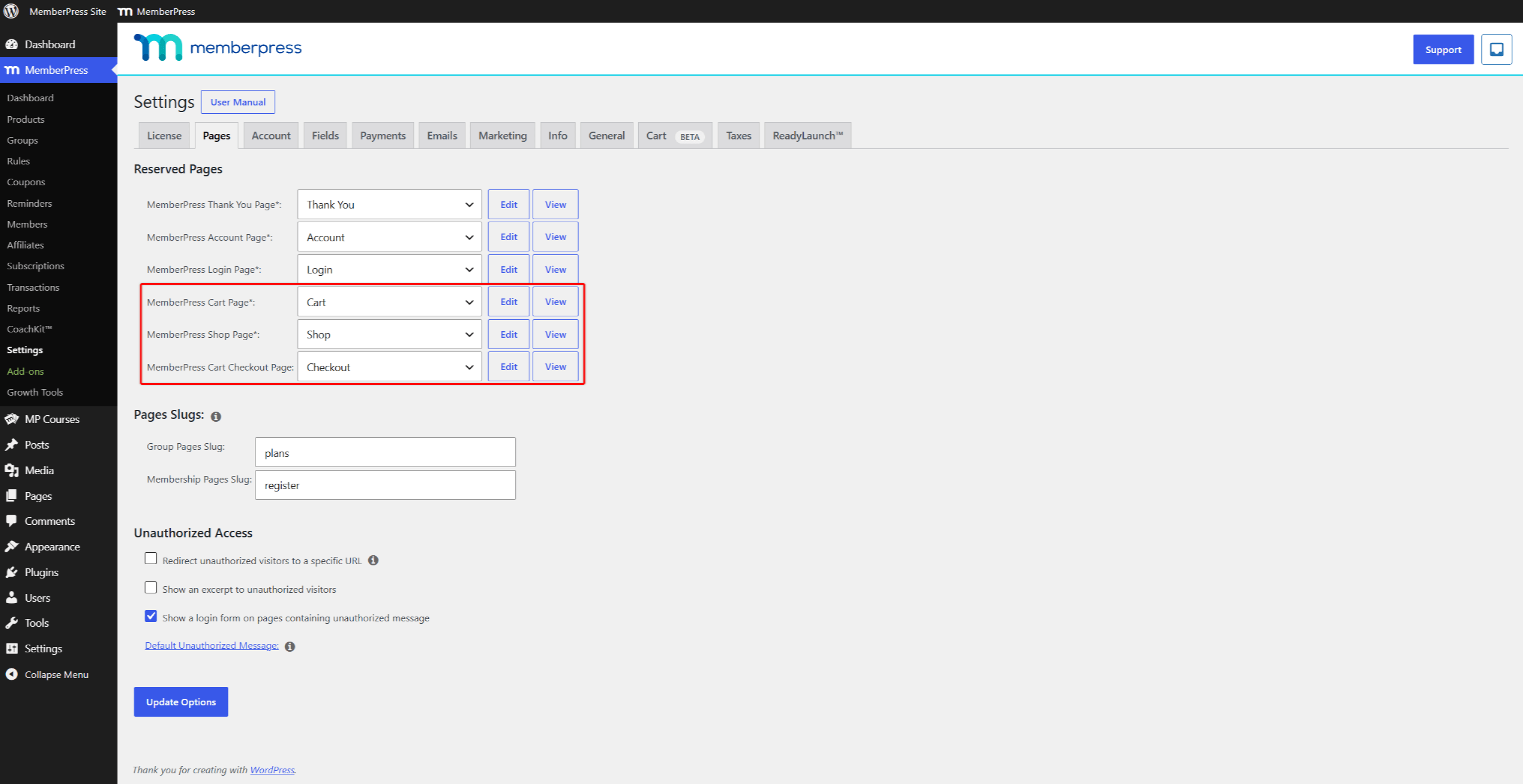
MemberPress creates three reserved pages automatically when you enable the cart. These pages work as your store while the cart is enabled.
You can review them at Panel de control > MemberPress > Configuración, under the Páginas ficha:
- MemberPress Shop Page – lists your products for browsing;
- MemberPress Cart Page – shows the items a customer added;
- MemberPress Cart Checkout Page – collects the customer and payment details.
Each page uses the Plantilla ReadyLaunch by default. The ReadyLaunch header also displays a cart icon on your site. When multiple currencies are enabled, the header adds a currency switcher.
Cart Blocks
The cart also registers four blocks for the WordPress editor. You can place them on any page:
- Carrito – displays the cart contents;
- Shop – displays the product listing;
- Cart Icon – displays the cart icon with the item count;
- Currency Switcher – displays the currency selection control.
The Cart Checkout
By default, the cart checkout renders as a single-page form. You can instead enable the multi-step checkout wizard on the Carrito en Panel de control > MemberPress > Configuración.
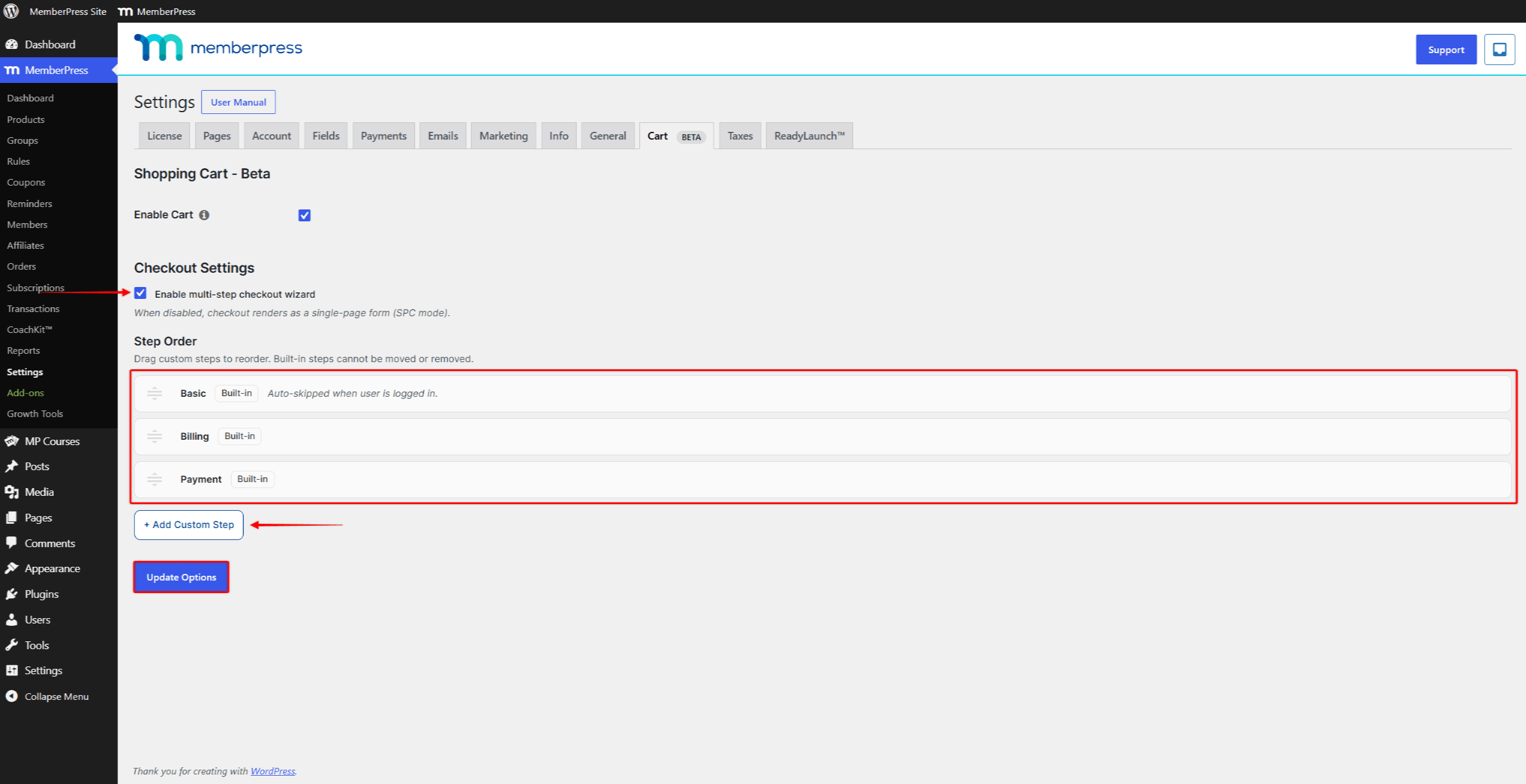
The wizard guides customers through payment in steps. The built-in steps are Básico, Facturacióny Pago. You can also add custom steps between them. On the checkout page, the Básico step appears as “Your details”.
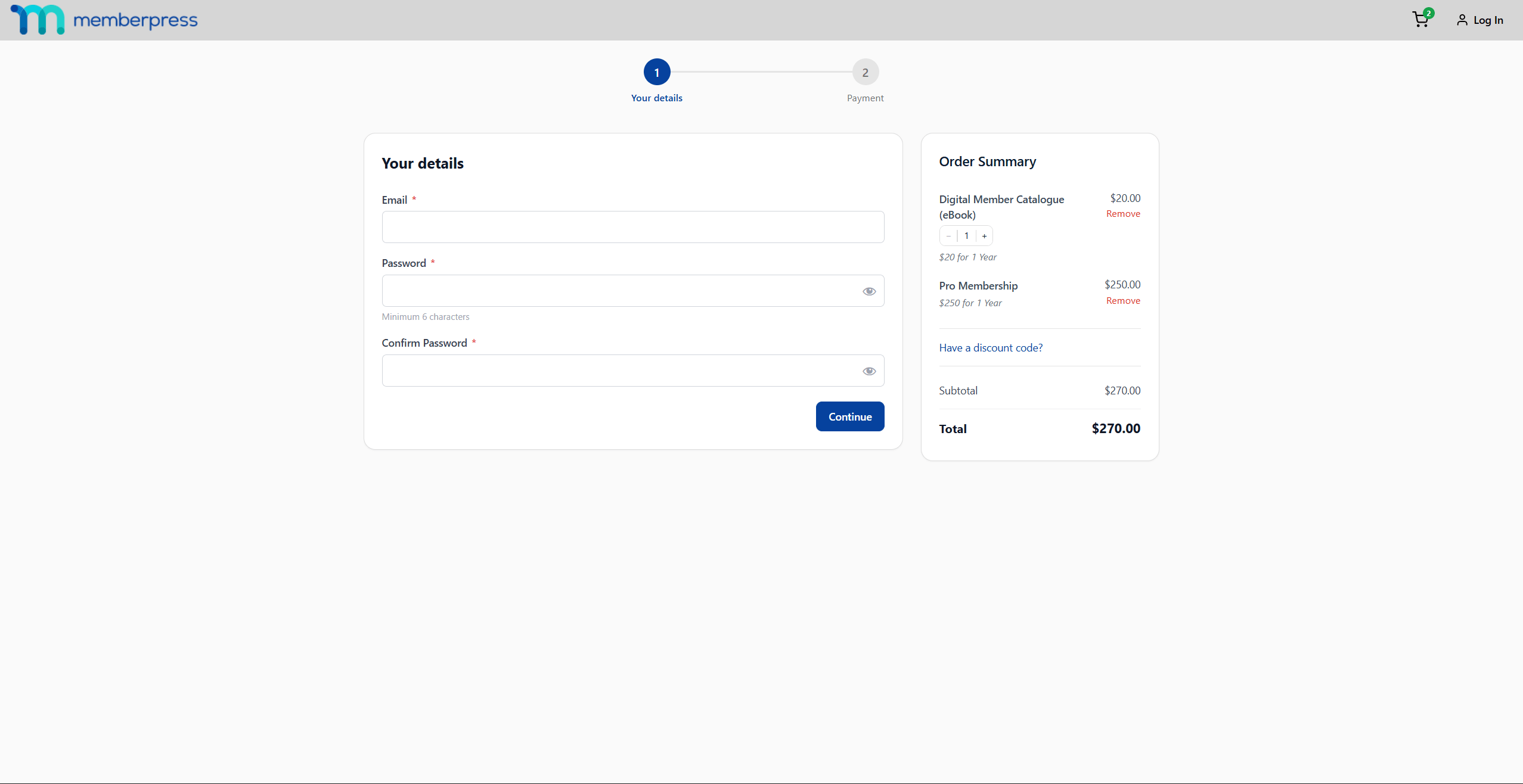
En Básico step creates the customer’s account. The customer then continues to the payment step logged in. The wizard skips the steps a customer does not need. For example, the Básico step is skipped for customers who are already logged in.
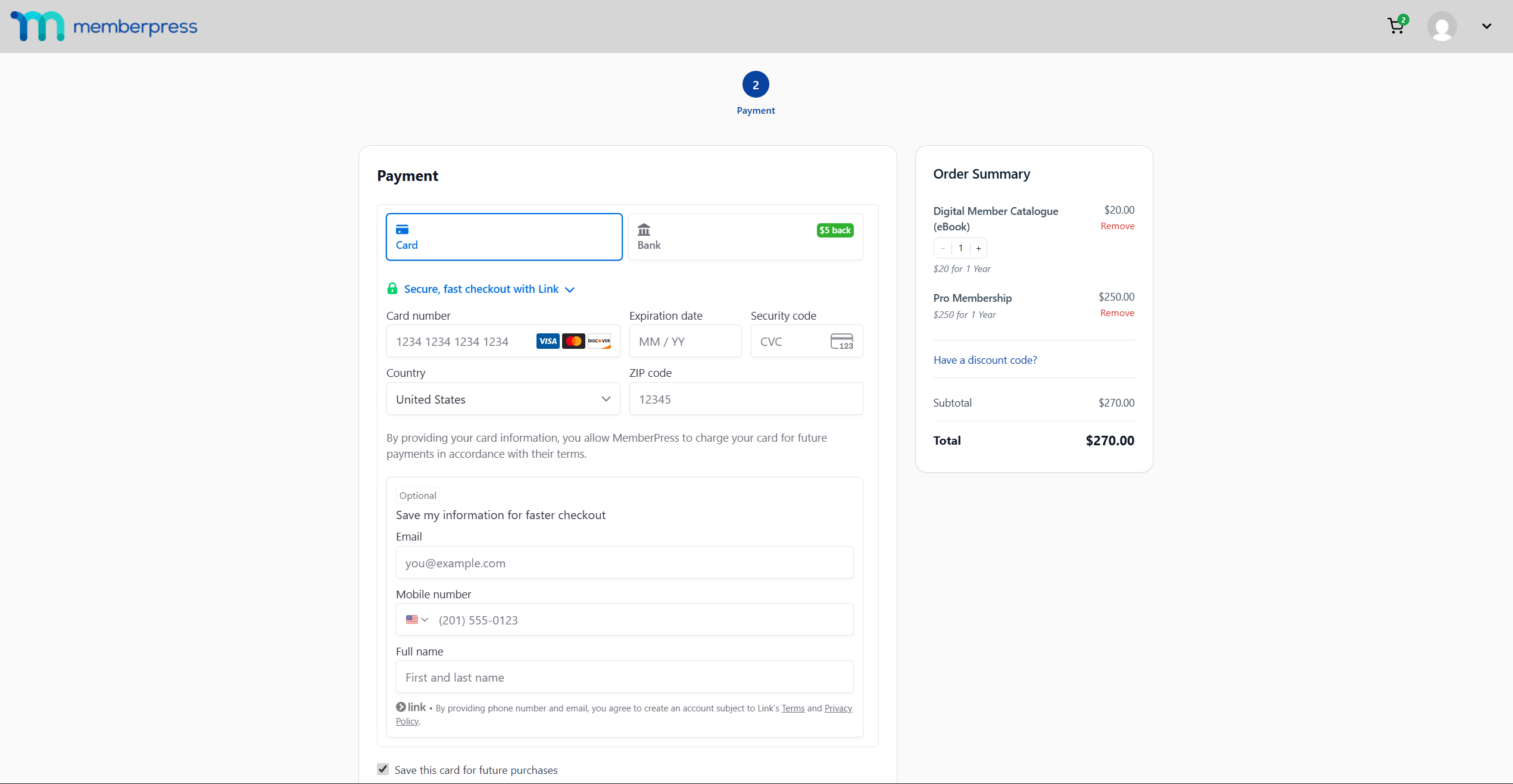
Two payment gateways support the cart checkout:
- Stripe – processes card payments directly on the checkout page;
- Pago fuera de línea – records the order for manual payment collection.
Each gateway has its own “Habilitar para el carrito” en el Configuración de pagos MemberPress. PayPal, Authorize.net, and Square process payments only on a product’s standalone registration page.
Orders and Emails
Every cart purchase creates an order. You can manage orders at Dashboard > MemberPress > Orders.
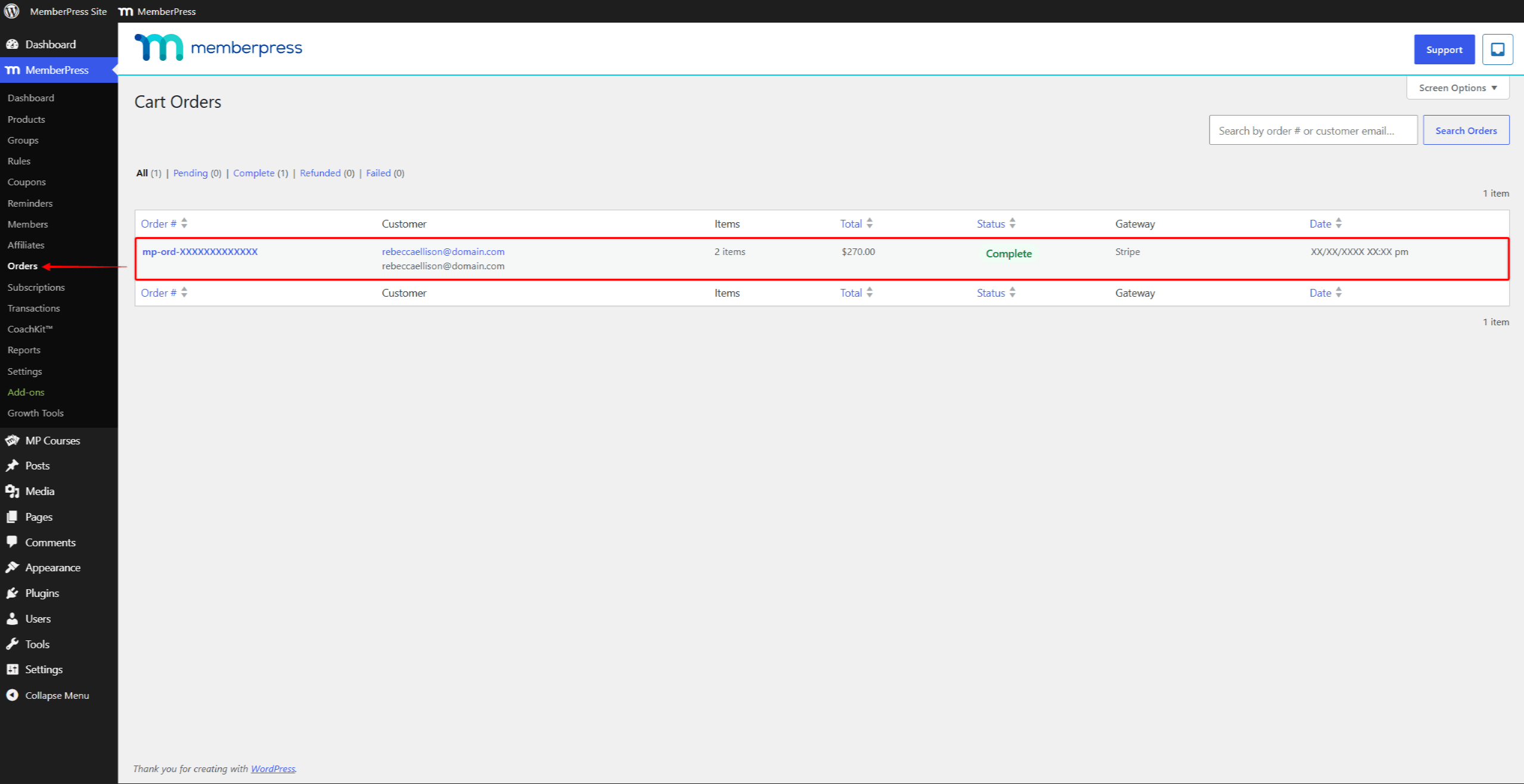
En “Cart Orders” screen lists each order with its items, totals, and status. From an order, you can issue refunds, resend the receipt, cancel the order, and add order notes. Customers can review their own orders on the Orders page of their account.
The cart adds six email notices. MemberPress sends them automatically for order events:
- Cart Order Receipt – sent to the customer, with a matching admin notification;
- Cart Order Refund – sent to the customer, with a matching admin notification;
- Cart Order Cancellation – sent to the customer, with a matching admin notification.
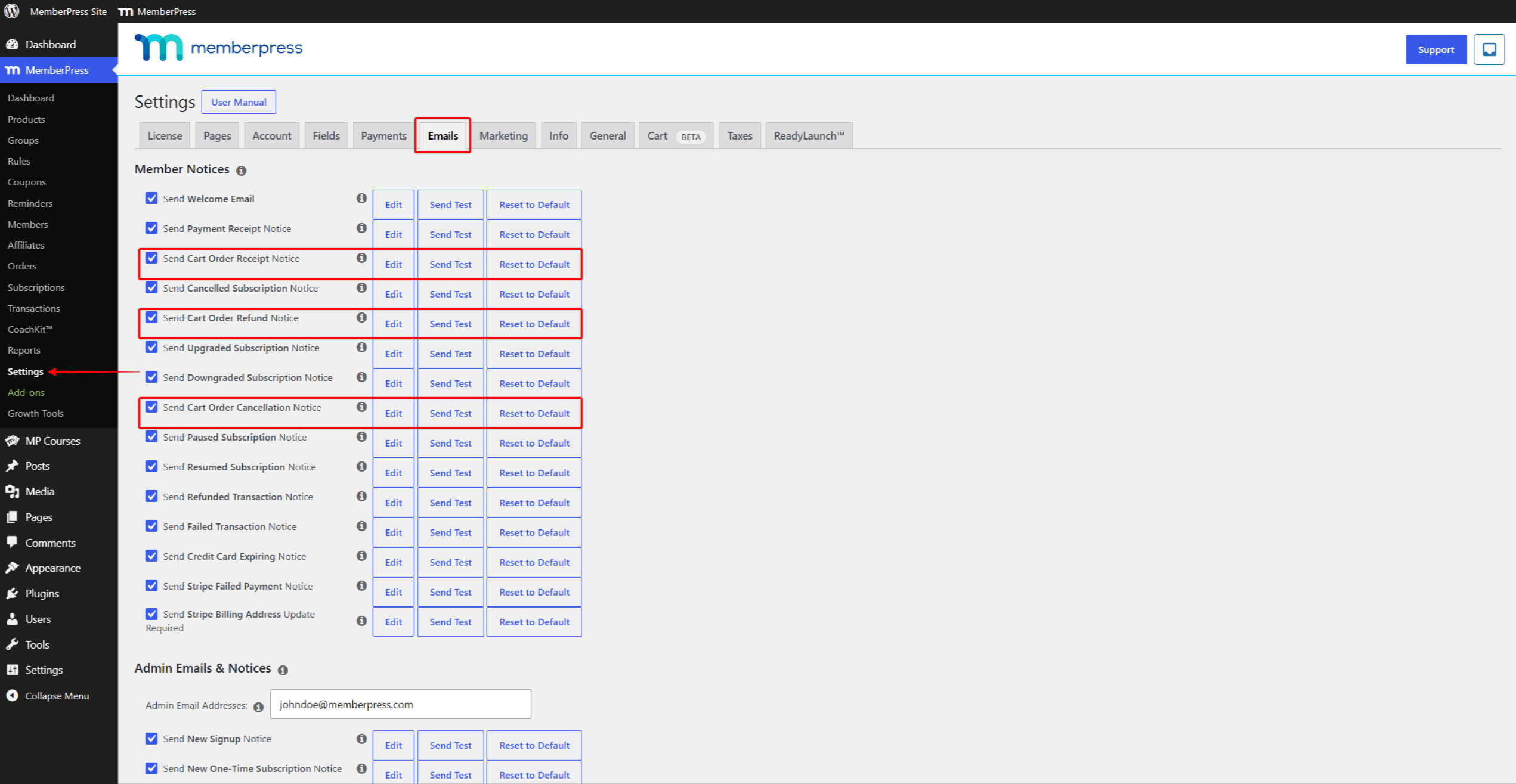
You can edit these notices at Panel de control > MemberPress > Configuración, under the Correos electrónicos ficha.
What the Cart Does Not Change
Existing MemberPress features continue to work the same way. The cart changes how customers buy, not what they buy.
The following areas remain unchanged:
- content protection through Normas MemberPress;
- recurring billing, subscriptions, and transactions for membership products;
- member accounts, groups, and coupons;
- standalone registration pages, which stay supported with the cart on or off.
Groups accept membership-type products only. The group edit screen lists them under the “Membership Products” campo.






 ES
ES  EN
EN  FR
FR  DE
DE  PT
PT 